AS Level 9618 · Paper 1 · 3.1
Computers and their components
The parts of a computer system, and how input, output, memory and storage devices work. Read the notes, try the past-paper questions, then check the mark scheme.
Past papers from June 2021 to June 202636 questions · 198 marks
In this subtopic
- Why a computer needs input, output, primary memory and secondary storage
- Embedded systems
- How common hardware devices work, and why buffers are used
- RAM and ROM, SRAM and DRAM, PROM, EPROM and EEPROM
- Monitoring and control systems
3.1 · 1 of 28Contents
Why a computer needs input, output and storage
A computer system takes in data, processes it, stores it and gives out results. Each of these jobs needs its own hardware.
- Input devices are needed so that data and control signals can get into the computer, either from a person (for example a keyboard or a touchscreen) or automatically (for example a sensor). Without input there is nothing to process.
- Output devices are needed so that the results of processing can be used: shown on a screen, printed, played through speakers, or used to drive a motor.
- Primary memory (main memory: RAM and ROM) is needed because the processor can only work on the data and instructions held in main memory. A program, and the data it is using, must be loaded into RAM before it can be run. ROM holds the instructions that start the computer.
- Secondary storage is needed because RAM is volatile: everything in it is lost when the power is switched off. Secondary storage is non-volatile, so the operating system, programs and files are kept when the computer is off. It also holds far more data than main memory.
- Removable storage is secondary storage that can be taken out of the computer, such as a USB flash drive, a memory card, an external hard disk or an optical disc. It is needed to move data from one computer to another, to keep backup copies away from the computer, and to archive data.
Input, output and storage devices that are not part of the processor are called peripherals. Each peripheral is connected to the computer through a port, for example a USB port or an HDMI port (ports are explained in 4.1).
Primary memory or secondary storage?
- Primary memory (RAM) holds the data that is being used right now, for example the miles travelled on the current journey, or the video that is being recorded and sent.
- Secondary storage holds data that must be kept when the power is off, for example the total miles a car has travelled since it was built, or saved video files.
Practise this: past-paper questions
- June 2022 · Paper 12 · Q2(b)Two other features: • record the number of miles travelled in the current journey, from when the engine is turned on to when it is turned off •…
- November 2022 · Paper 11 · Q7(e)State the name of a peripheral device port that provides a physical connection in the computer for each of these peripherals. 3D printer Monitor
- November 2023 · Paper 12 · Q8(c)(i)Give the name of one port that can provide a connection for the optical disc reader/writer
- November 2023 · Paper 13 · Q7(d)Identify one port that could be used to connect the virtual reality headset to the laptop. Justify your choice. Port Justification
Used later in
3.1 · 2 of 28Book pages Contents
Input devices
Builds on
Input devices are peripherals used to provide data and control signals to a computer system. Data comes in many different forms, and there is a wide range of devices that can be used. The input process might be manual, such as through a keyboard or mouse, or automated, such as through a sensor. Some of the more common input devices, and their main purpose, are listed below.
| Device | Purpose |
|---|---|
| Keyboard | Lets a user enter character data (numbers, letters and symbols). It often has function keys or special keys for common tasks, such as changing the volume or switching between windows. |
| Mouse | Lets a user point and click to select icons, or to position the cursor on the screen. |
| Trackpad | Does the same job as a mouse, but the user moves the cursor with their fingers. It is usually found on laptop computers. |
| Graphic tablet | Also called a drawing tablet. It is used to create digital drawings by pressing the tip of a special stylus on the tablet surface. |
| Microphone | Captures analogue sound waves and converts them into electrical signals, for example to talk to a friend online or to record live music. |
| Flatbed scanner | Scans a physical document, such as a photograph, a handwritten note or a letter, and saves it as a digital bitmap image. |
| OMR scanner | OMR stands for optical mark recognition. It is often used to input the answers a candidate has marked on a multiple choice test paper. |
| Magnetic stripe card reader | Reads the data held on a magnetic stripe, such as on a hotel door card. |
| Smart card reader | Reads the data from an embedded integrated circuit (IC) chip, for example the chip on a customer’s bank card in a shop, so that a payment can take place. |
| NFC reader | Reads the data from an NFC (near field communication) tag. It is used for contactless payment: the reader uses radio waves to read a bank card or mobile phone held close to it. |
| Touchscreen | A screen is usually an output device, but a touchscreen is also an input device. The user selects icons, types on an on-screen keyboard and moves around with a finger or a stylus. |
Used later in
3.1 · 3 of 28Book page Contents
How touchscreens work
Builds on
A touchscreen is a display screen that is also an input device: it detects where it has been touched.
Early touchscreens worked with CRT screens, but could be used just as well with flat screens. Emitters were placed along the sides of the screen with detectors opposite them. The emitters produced infrared light or ultrasonic waves. When a finger touched the screen it blocked some of the light or ultrasound, so some of the detectors measured a weaker signal.
A modern touchscreen has the layers that make the display, with extra touch-detecting layers just beneath the surface of the screen. There are two approaches: the resistive touchscreen and the capacitive touchscreen, explained in the next two sections.
In every type of touchscreen, the processor takes readings from the measuring devices and uses them to calculate the position (the coordinates) of the touch. The processor then compares this position with what is shown on the screen, so it can carry out the action the user selected, for example choosing an item from a menu.
The principal operation of touchscreens
- A resistive touchscreen has two layers. When the user presses the screen, the layers touch and a circuit is completed.
- A capacitive touchscreen has several layers. When the top layer is touched, there is a change in the electric current (charge is transferred to the finger).
- A microprocessor works out the coordinates (position) of the touch and matches it to the option shown at that point.
Practise this: past-paper questions
- June 2023 · Paper 13 · Q3(a)The mobile telephone has a touchscreen. There are different types of touchscreen. Complete the description of the principal operation of…
- June 2024 · Paper 13 · Q7(d)The robot includes a touchscreen for the customer to make their payment. Describe the principal operation of a touchscreen
- November 2025 · Paper 12 · Q8(b)(i)Explain how a touchscreen converts the point of touch to a selection from the menu
3.1 · 4 of 28Book pages Contents
Resistive touchscreens
A resistive touchscreen has two layers separated by a thin space beneath the screen surface. The screen is not rigid, so when a finger presses on it, the pressure moves the top layer down until it makes contact with the lower layer. The point of contact creates a voltage divider in the horizontal and vertical directions, and the processor uses these voltages to work out where the screen was pressed.
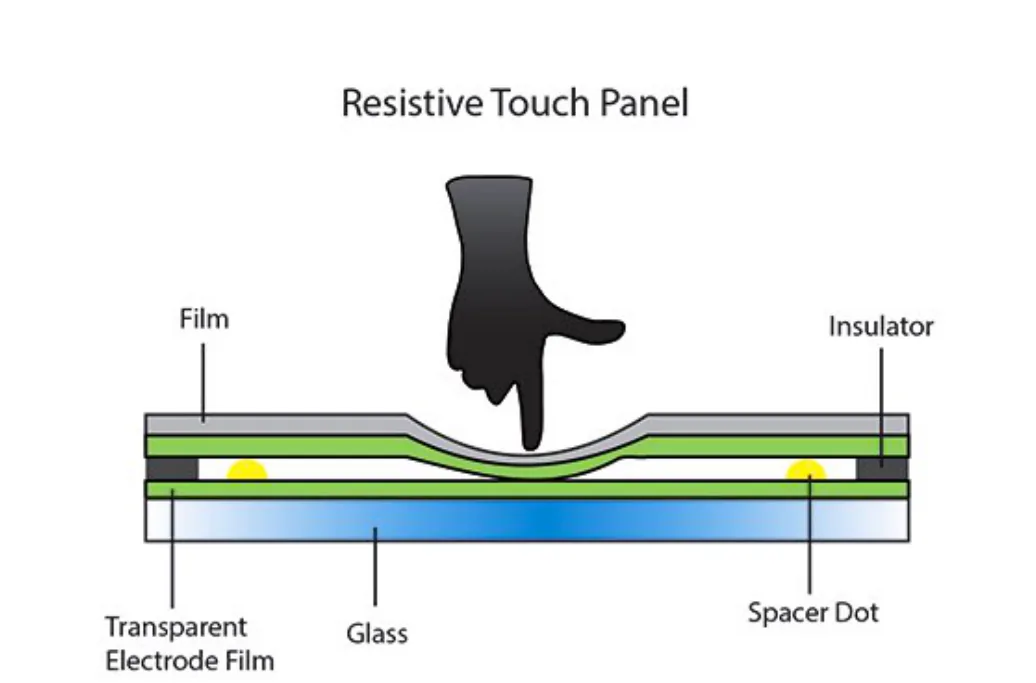
Working of resistive touchscreens
- The screen has two (charged) conducting layers, separated by a small gap.
- Pressure on the screen makes the layers touch.
- This completes the circuit.
- The point of contact is registered.
- The coordinates are used to calculate the position of the touch.
Benefits of resistive touchscreens
- Relatively cheap technology.
- Can be used with bare fingers, gloved fingers or a stylus (any object that presses the screen).
Drawbacks of resistive touchscreens
- Visibility is poor in strong sunlight.
- Does not allow multi-touch.
- Durability is only fair: the screen is easily scratched and wears out over time.
Practise this: past-paper questions
- June 2022 · Paper 12 · Q2(c)The car has a resistive touchscreen for the user to select options. Tick (✓) one box in each row to show whether each statement about a resistive…
- June 2023 · Paper 13 · Q3(a)The mobile telephone has a touchscreen. There are different types of touchscreen. Complete the description of the principal operation of…
3.1 · 5 of 28Book pages Contents
Capacitive touchscreens
A capacitive touchscreen does not need a soft screen. Instead, it uses the fact that a finger touching a glass screen causes a change in capacitance in a circuit component just below the screen. The most effective type is projective capacitive touch (PCT) with mutual capacitance: there is a circuit beneath the screen containing an array of capacitors. It can detect the touch of several fingertips at the same time (multi-touch), which allows more advanced applications.
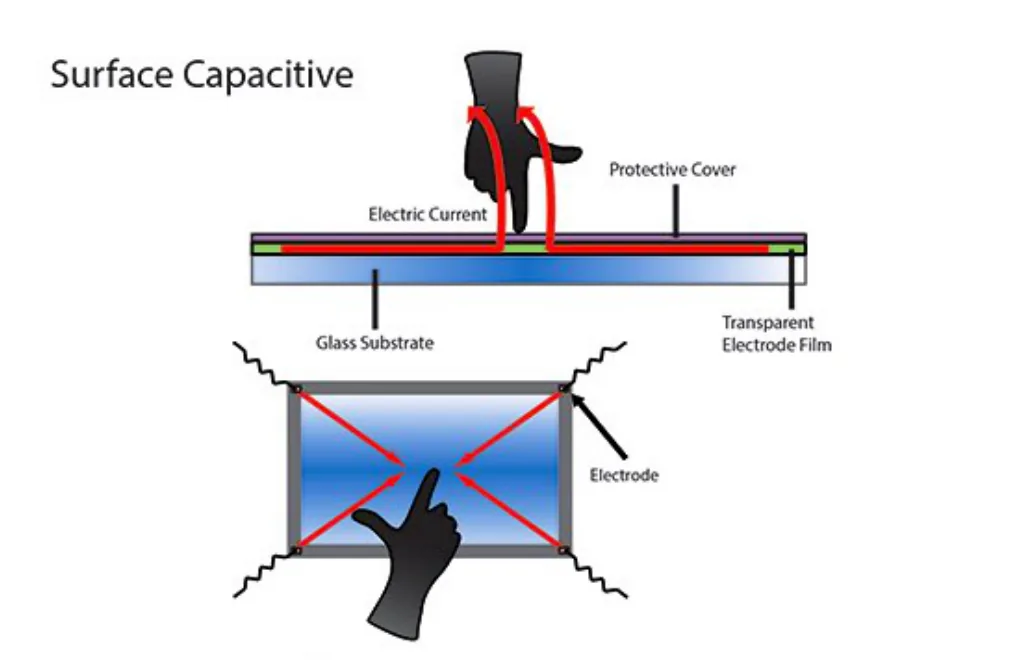
Working of capacitive touchscreens
- The screen is made from materials that store electric charge.
- When it is touched, charge is transferred to the finger.
- Sensors at the corners of the screen detect the change.
- The point of contact is registered.
- The coordinates are used to calculate the position of the touch.
Benefits of capacitive touchscreens
- Medium cost technology.
- Visibility is good even in strong sunlight.
- Allows multi-touch.
- Very durable: it takes a major impact to break the glass.
Drawback of capacitive touchscreens
- Only works with bare fingers, although the latest screens allow a special stylus to be used.
Practise this: past-paper questions
Used later in
3.1 · 6 of 28Book page Contents
How a microphone works
To input sound, a microphone is needed. A microphone has a diaphragm, a flexible material that vibrates when sound reaches it. The diaphragm is connected to circuitry, so the vibration causes a change in an electrical signal. A dynamic microphone uses a coil that moves past a magnet. A condenser microphone uses a change in capacitance instead, and another alternative is a piezoelectric crystal.
The microphone produces an analogue electrical signal. An analogue-to-digital converter (ADC) converts it into a digital signal so that it can be processed inside the computer.
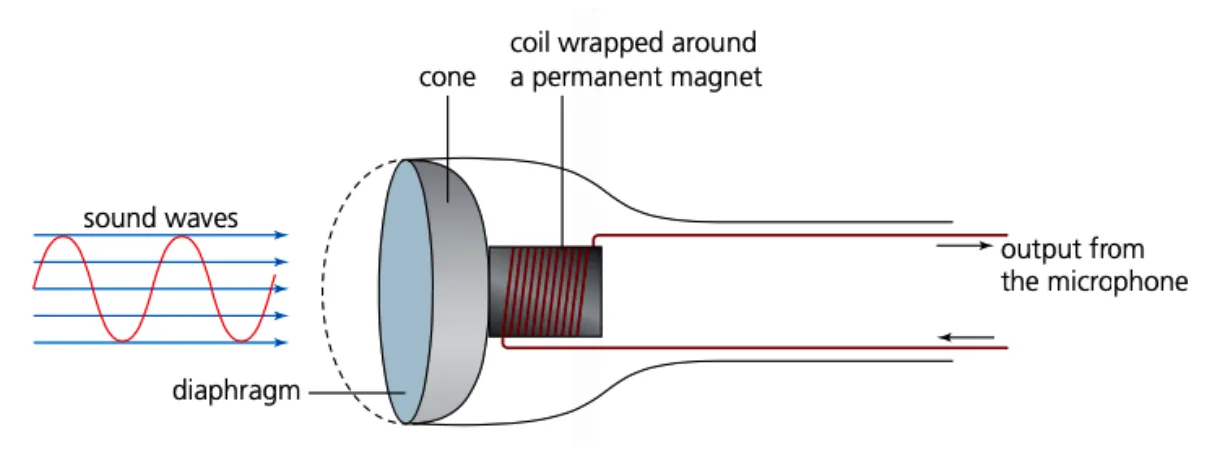
Working of a microphone
- The microphone has a diaphragm (or a ribbon).
- Incoming sound waves make the diaphragm vibrate.
- In a dynamic microphone, the vibration makes a coil move past a magnet. In a condenser microphone, the vibration changes the capacitance.
- This produces an electrical signal (a varying current) that matches the sound.
Practise this: past-paper questions
Used later in
3.1 · 7 of 28Book pages Contents
Output devices
Output devices are peripherals that reproduce or display data and information from a computer system. Information is data that has been processed and formatted so that it is useful to the user. Some common output devices are listed below.
| Device | Purpose |
|---|---|
| Speakers | Generate sound waves from the data received from a sound card. Speakers are often built into devices, but can also be connected as external peripherals. |
| Inkjet printers | Use liquid ink to print in black and white or in colour. High-end inkjet printers can use specialist paper and print at very high resolution. Liquid ink gives rich colours, so they are the most suitable printers for photographs. The ink is expensive, especially in small cartridges. They are the usual choice at home because they are cheap to buy. |
| Laser printers | Often used in the workplace. They print a whole page at a time, so they are usually faster than inkjet printers; high-specification laser printers can print hundreds of pages per minute. They use powdered ink called toner instead of liquid ink. The quality is very good for text, but not so good for photographs, as it is hard to produce deep, rich colours. |
| 3D printers | Print a three-dimensional design from the computer as a solid object. They use filament, usually a plastic-based resin, which is heated and printed layer (slice) by layer. Scientists are even exploring bioprinters that make living body parts. |
| Display screens | Most computers have a display, either a stand-alone monitor or a built-in screen. LCD (liquid crystal display) screens are low cost and common on desktop and laptop computers. They are being replaced by LED (light-emitting diode) displays, which use less power, so they are cheaper and more environmentally friendly to run. A newer variant is the OLED (organic light-emitting diode) screen: OLEDs are lighter and more flexible than LED displays, so they are a good choice for phones and tablets. |
Used later in
3.1 · 8 of 28Book pages Contents
How a laser printer works
A printer produces a hard copy of information. Some printers print only in black (monochrome) and some print in colour using CMYK (cyan, magenta, yellow and black), which are mixed to make other colours. A printer forms an image from tiny dots, and its resolution is measured in dpi (dots per inch): the more dots per inch, the higher the resolution.
A laser printer uses a powder called toner, supplied in a cartridge. A colour laser printer has 4 toner cartridges, one for each CMYK colour. A laser is used to create static electricity on the areas that make up the image or text being printed. Toner sticks to these areas, is transferred to the paper, and is then fixed to it by a fuser (heated rollers).
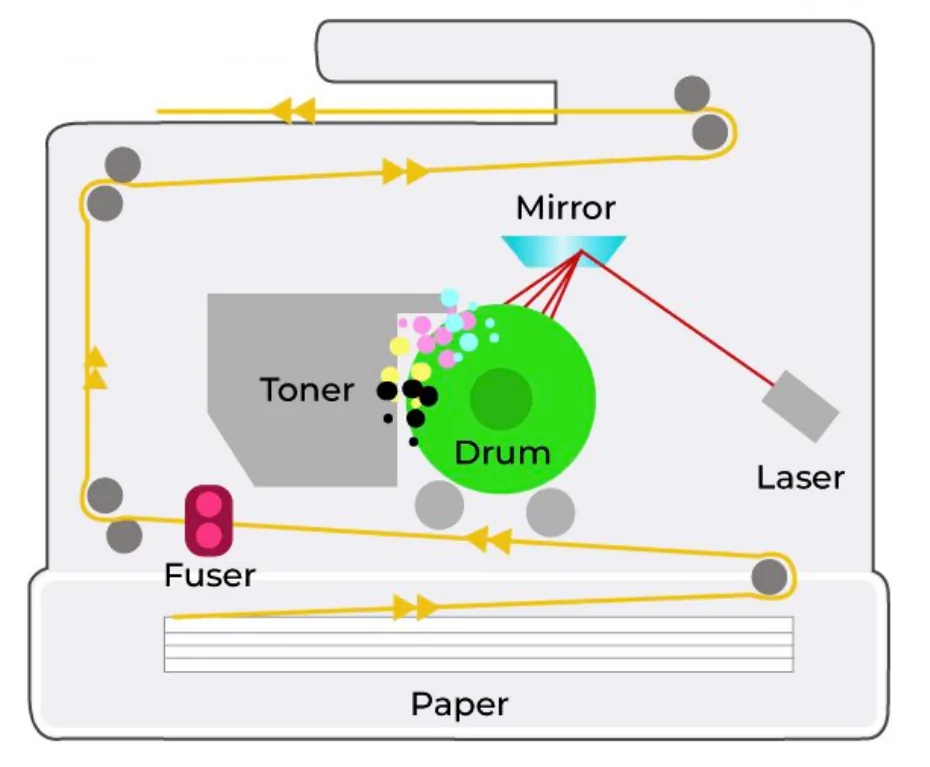
Working of a laser printer
- The data is sent to the printer driver.
- The printer driver makes sure the data is in the right format for the printer.
- A check is made to make sure the printer is available to print.
- The data is sent to the printer and stored in the printer buffer.
- The printing drum is given a positive charge. As the drum rotates, a laser beam is scanned across it, removing the positive charge in some areas. This leaves negatively charged areas that match the text and images of the page.
- The drum is coated with positively charged toner, which sticks only to the negatively charged areas.
- A negatively charged sheet of paper is rolled over the drum.
- The toner on the drum sticks to the paper.
- The electric charge on the paper is removed after one rotation of the drum, so the paper does not stick to the drum.
- The paper goes through the fuser (a set of heated rollers). The heat melts the toner and fixes it to the paper.
- A discharge lamp removes all the electric charge from the drum, ready to print the next page.
Advantages and disadvantages of laser printers
- Advantages: the toner cartridges last much longer than ink cartridges, the print quality is excellent, they print quickly (for example 60 pages per minute) and they can print on both sides of the paper.
- Disadvantages: they are more expensive, and they take up more space (a larger footprint).
Practise this: past-paper questions
Used later in
3.1 · 9 of 28Book pages Contents
How a 3D printer works
A 3D printer creates solid three-dimensional objects. The object must first be drawn as a 3D model, using a computer-aided design (CAD) application, or scanned using a 3D scanner. The model is split into many thin horizontal layers (slices). The printer uses a material such as a polymer, acrylic or plastic, and prints each layer on top of the one before. Building an object up layer by layer like this is called additive manufacturing.
Working of a 3D printer
- The object is designed using computer-aided design (CAD) software.
- The software splits the object into slices (layers).
- The data about the slices is sent to the printer.
- The solid plastic is melted and transferred to the nozzle.
- A stepper motor moves the nozzle into position.
- The nozzle extrudes (squeezes out) the molten plastic.
- Moving the nozzle and extruding plastic repeat until the layer is complete.
- A fan cools the layer.
- Melting, moving, extruding and cooling are repeated for each layer after that, until the object is complete.
There are other types of 3D printing:
- Direct 3D printing uses inkjet technology. The print head moves from side to side, and it can also move up and down to build the layers of the object.
- Binder 3D printing uses two passes for each layer. The first pass sprays dry powder on to the layer. The second pass sprays a binder (a type of glue) to make a solid layer.
- Newer technology uses lasers and UV light to harden a polymer.
Advantages and disadvantages of 3D printing
- Advantages: items and prototypes can be made quickly; engineers and designers can design and test an object without having it manufactured; the design can be shared easily as a digital file.
- Disadvantages: it is expensive; dangerous items may be printed; printed items are not as durable as manufactured ones; there may be copyright problems.
Practise this: past-paper questions
3.1 · 10 of 28Book page Contents
How a speaker works
Builds on
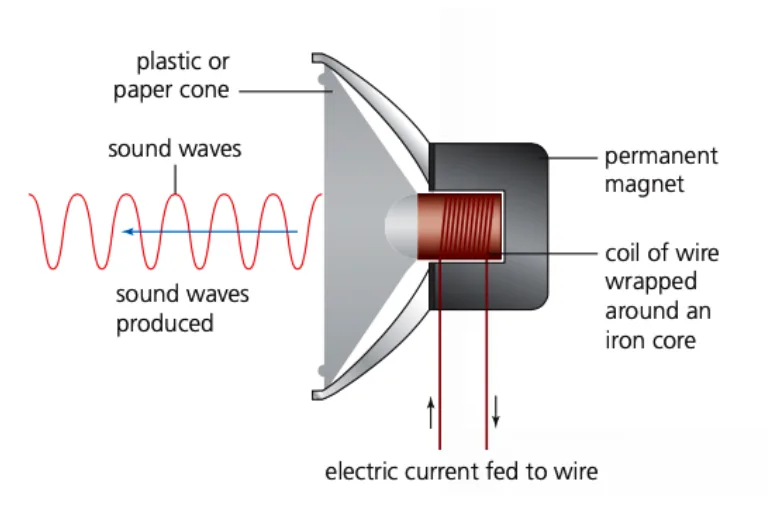
To output sound, a speaker (loudspeaker) is needed. It works in effectively the reverse way to a microphone. Digital data from the computer is converted to analogue by a digital-to-analogue converter (DAC). The analogue signal is fed to the speaker as a varying electric current. In most speakers, the current flows through a coil inside the magnetic field of a permanent magnet. As the size and direction of the current keep changing, the coil moves backwards and forwards. This moves a cone (diaphragm), which creates the sound.
Working of a speaker
- An electric current flows through a coil of wire wrapped around an iron core, so the core becomes a temporary electromagnet. A permanent magnet is placed very close to it.
- As the current through the coil varies, the magnetic field in the iron core varies too. The core is attracted towards, and pushed away from, the permanent magnet, so it vibrates.
- The iron core is attached to a cone (made of paper or thin synthetic material), so the cone vibrates too, producing sound waves.
3.1 · 11 of 28Book page Contents
How a virtual reality headset works
Builds on
Virtual reality has many uses. For example, it lets an engineer walk around inside a dangerous place, such as a nuclear power plant, without actually being there. Engineers can plan changes or repairs in complete safety, and try out different scenarios before carrying them out. A virtual reality headset gives the user the feeling of being there. It works like this:
- Video is sent from a computer to the headset, either through an HDMI cable or from a smartphone fitted into the headset.
- Two feeds are sent to an LCD or OLED display (sometimes there are two screens, one for the left side of the image and one for the right). Lenses between the eyes and the screen focus and reshape the image for each eye, giving a 3D effect.
- Most headsets have a 110° field of view, which is enough to give a pseudo 360° surround image.
- A frame rate of 60 to 120 images per second is used to give a realistic image.
- As the user moves their head (up and down or left to right), sensors measure the movement. A microprocessor works out the direction of the movement, and the image on the screen changes to match. The sensors are usually gyroscopes or accelerometers; LEDs are used with mini cameras to track head movement further.
- Headsets use binaural (surround) sound, so the speaker output seems to come from behind, from the side or from a distance, giving realistic 3D sound.
- Some headsets use infrared sensors to track eye movement as well as head movement. This makes the depth of field more realistic: for example, objects in the foreground look fuzzy when the user’s eyes show they are looking into the distance.
Practise this: past-paper questions
3.1 · 12 of 28Book page Contents
Random access memory (RAM)
The RAM (random access memory) inside a computer holds all the data and instructions that are currently being processed. A program must be loaded into RAM from secondary storage before it can be run, because RAM can be read and written much faster than secondary storage. The processor fetches instructions (and any data it needs) directly from RAM, then decodes and executes them.
RAM is split into separate locations, each with its own unique memory address. The processor uses these addresses to access the data in RAM. Any location can be accessed in the same amount of time, unlike storage devices where something (such as a read-write head) has to be moved into place. This is why it is called random access: any location can be reached "at random" with no effect on speed.
RAM is volatile: it needs power to hold its data, and if the power is switched off, all the data in RAM is lost. Any data that must be kept has to be saved to secondary storage before the computer is switched off. If you have ever lost work because you had not saved it when the computer switched off, you have seen the effect of RAM’s volatility.
RAM has a smaller capacity than secondary storage, but it is usually the largest part of main memory.
Characteristics of RAM
- It is volatile.
- It can be read from and written to.
- It is quicker to access than secondary storage.
- It has the largest capacity of all main memory.
Used later in
3.1 · 13 of 28Book page Contents
Read-only memory (ROM)
Builds on
ROM (read-only memory) usually stores the boot sequence (BIOS) of a computer. Unlike RAM, it is non-volatile: it does not lose its data when the power is switched off. The contents of ROM are set by the manufacturer and, as the name says, the computer usually only reads from it. This is a good thing, because ROM is crucial to the computer, and any change could stop it starting up properly.
The BIOS (Basic Input/Output System) stored in ROM is a short sequence of instructions that checks that the core components of the computer (RAM, the basic input and output devices and secondary storage) are connected and working correctly.
After that, the boot sequence loads the essential parts of the operating system from secondary storage into RAM. From then on, the operating system runs the computer, managing memory, storage and requests for input and output.
Characteristics of ROM
- It is non-volatile.
- Its contents are written by the manufacturer.
- It usually stores the BIOS (the start-up instructions).
- It has a smaller capacity than RAM.
Practise this: past-paper questions
Used later in
3.1 · 14 of 28Book page Contents
Comparing RAM and ROM
Builds on
RAM and ROM are both types of primary memory (main memory), but they are different in several important ways.
RAM has a much greater capacity than ROM. RAM holds the data and instructions that are being used, such as the operating system and any programs you are running. When you put a disc into a games console, the code on the disc is not run until it has been copied from the disc into RAM, which is why you see a loading screen.
Because ROM is read-only, it stores core instructions that do not need to change, such as the BIOS and the code that loads the operating system into RAM (called bootstrapping).
| RAM | ROM | |
|---|---|---|
| Purpose | Stores data and instructions during processing | Stores start-up instructions set by the manufacturer |
| Volatility | Volatile: data is lost without power | Non-volatile: data stays when the power is switched off |
| Read or write | Read and write | Read only |
| Capacity | Usually several gigabytes | A few megabytes |
RAM and ROM are used together in many devices, not only in computers. In an embedded system such as a washing machine, a car or a television:
- ROM stores the program (the firmware) that controls the device, such as the washing cycles, and the start-up instructions. These must not be lost when the power is switched off, and the user must not be able to change them.
- RAM stores the data being used while the device is running, such as the settings the user has chosen, the current temperature, the time left, or the video being recorded.
Practise this: past-paper questions
- June 2021 · Paper 11 · Q5(b)The washing machine’s embedded system makes use of both Random Access Memory (RAM) and Read Only Memory (ROM). State the purpose of RAM and ROM…
- June 2022 · Paper 11 · Q2(a)(i)Complete the description of computer memory. Random Access Memory (RAM) and Read Only Memory (ROM) are both examples of memory. One item that is…
- November 2022 · Paper 12 · Q3(c)Embedded systems contain Read Only Memory (ROM) and Random Access Memory (RAM). Explain the reasons why ROM is used in an embedded system
- June 2026 · Paper 12 · Q6(c)The health monitor contains Random Access Memory (RAM) and Read Only Memory (ROM). Describe two differences between RAM and ROM. 1 2
3.1 · 15 of 28Book page Contents
SRAM and DRAM
Builds on
DRAM stands for dynamic random-access memory. It is commonly used for a computer’s main memory because it is relatively cheap to manufacture.
A DRAM memory cell is usually made of a capacitor and a transistor. The capacitor stores a charge: whether it is charged or discharged represents a single bit. The transistor acts as a switch to set or change the value. The charge on a capacitor leaks away over time, so DRAM needs a frequent memory refresh to restore the capacitors to their original charge. This happens constantly in the background, so the user does not notice it.
SRAM stands for static random-access memory. It uses a different type of circuit (flip-flops), which does not need to be refreshed. SRAM is generally about twice as fast to read or write as DRAM, but it is more expensive to manufacture, so it is used where speed matters most, for example for registers and cache memory.
DRAM and SRAM are both volatile: they need a constant power supply to keep their data.
| DRAM | SRAM | |
|---|---|---|
| Each bit is stored by | A capacitor and a transistor | Transistors arranged as a flip-flop |
| Refreshing | Needs to be constantly refreshed | Does not need to be refreshed |
| Cost | Cheaper to manufacture | More expensive to manufacture |
| Capacity | Higher memory capacity than SRAM | Lower memory capacity than DRAM |
| Access speed | Slower | Faster data access time than DRAM |
| Typical use | Main memory | The processor’s cache memory |
Choosing SRAM or DRAM for a device
- Choose DRAM when a large amount of memory is needed at low cost, for example the main memory of a computer, or the 1 GB of memory that holds the print data in a 3D printer or the video in a CCTV computer. DRAM is cheaper and holds more data than the same amount of SRAM.
- Choose SRAM when speed matters most, for example the cache memory in a laptop’s processor. SRAM has a faster access time and does not need refreshing, so no time is lost waiting for a refresh.
Practise this: past-paper questions
- June 2022 · Paper 11 · Q2(a)(i)Complete the description of computer memory. Random Access Memory (RAM) and Read Only Memory (ROM) are both examples of memory. One item that is…
- June 2023 · Paper 11 · Q4(a)(ii)The central computer has Dynamic RAM (DRAM). Identify two advantages of using DRAM instead of Static RAM (SRAM)
- November 2023 · Paper 11 · Q7(c)A 3D printer contains 1 GB of Dynamic RAM (DRAM) to store print data. State two advantages of the printer having Dynamic RAM instead of Static RAM…
- November 2023 · Paper 13 · Q7(a)Explain why Static RAM is used in the laptop instead of Dynamic RAM
Show 4 more
- November 2024 · Paper 11 · Q3(c)Identify two disadvantages of using Dynamic RAM (DRAM) instead of Static RAM (SRAM) in a computer system
- November 2024 · Paper 12 · Q2(b)An embedded system has Dynamic RAM (DRAM). Identify one benefit of using DRAM instead of Static RAM (SRAM) in an embedded system
- November 2024 · Paper 13 · Q2(a)Identify two differences between DRAM and Static RAM (SRAM)
- November 2025 · Paper 11 · Q6(c)State three differences between Dynamic RAM (DRAM) and Static RAM (SRAM)
3.1 · 16 of 28Book page Contents
PROM, EPROM and EEPROM
Builds on
Most electronic devices contain ROM. As the name says, ROM is not meant to be written to. Traditional ROM circuits, called mask ROM, have their contents written during manufacture, and they cannot be changed afterwards.
PROM (programmable read-only memory) is a type of ROM that can be written to once (only) after the circuit has been manufactured. It is often used when a device is made in small numbers, so it would not be cost-effective to write the contents during manufacture. The PROM is supplied empty, and the supplier of the device writes the data to it. This also lets the supplier write the latest version of the software without an expensive redesign of the manufacturing process. PROM is used in microcontrollers, games consoles, mobile phones and RFID tags.
EPROM (erasable programmable read-only memory) can be changed. The memory chip is removed from the system and ultraviolet (UV) light is used to erase the data; all the contents are erased in one operation. This is a specialist job that needs special equipment and an expert operator.
EPROM has been replaced by EEPROM (electrically erasable programmable read-only memory). Individual bytes can be erased electrically, using a voltage, and the chip can then be reprogrammed. This can be done while the chip is still inside the device, so the device’s software (its firmware) can be updated without taking it apart. EEPROM is used in smart cards and remote keyless systems. Some EEPROM chips have extra security features to stop hackers reprogramming them.
Differences between PROM, EPROM and EEPROM
- PROM can be written only once. EPROM and EEPROM can be erased and rewritten many times.
- EPROM is erased using UV light, and the chip must be removed from the device. EEPROM is erased using a voltage, and it can stay in the device.
- EPROM must be completely erased before it is rewritten. EEPROM does not have to be completely erased before it is rewritten: single bytes can be changed.
Why EEPROM is used in an embedded system (for example a VR headset)
- The firmware can be updated (for example to fix errors or add features) without removing the chip.
- Only the bytes that need changing have to be erased and rewritten.
- It is non-volatile, so the program is kept when the power is off.
Practise this: past-paper questions
- June 2022 · Paper 11 · Q2(a)(ii)Explain the difference between Programmable ROM (PROM), Erasable Programmable ROM (EPROM) and Electrically Erasable Programmable ROM (EEPROM)
- November 2022 · Paper 11 · Q9(b)Embedded systems use Electrically Erasable Programmable ROM (EEPROM). Describe one benefit of using EEPROMs in an embedded system
- November 2023 · Paper 13 · Q7(b)Identify two reasons for using Electrically Erasable Programmable ROM (EEPROM) in a virtual reality headset
- June 2024 · Paper 12 · Q2(c)The VR headset has Electrically Erasable Programmable Read Only Memory (EEPROM). Explain the benefits of using EEPROM instead of other types of…
Show 3 more
- November 2024 · Paper 12 · Q2(c)Give two differences between Erasable Programmable ROM (EPROM) and Electrically Erasable Programmable ROM (EEPROM). Difference 1 Difference 2
- November 2025 · Paper 13 · Q4(c)Complete the table by writing the name of the type of memory technology for each description. Description | Memory technology A read only memory…
- June 2026 · Paper 13 · Q8(a)The computer has Programmable Read Only Memory (PROM). Complete the table by naming and describing two other types of ROM. type of ROM |…
3.1 · 17 of 28Book pages Contents
Buffers
Builds on
Whenever data is transferred from one part of a computer system to another, there is a problem if the data can be sent more quickly than it can be received. The solution is a buffer: an area of memory, usually in RAM, where data is held on its way to its destination. A buffer works as a queue, so data comes out of it in the same order that it went in.
A printer is a good example, because a printer is much slower than the processor:
- The processor sends the data to be printed to the printer buffer, as fast as it can.
- The printer takes data from the buffer and prints it at its own, slower speed.
- Meanwhile the processor is free to carry on with other tasks instead of waiting for the printer.
- When the buffer is empty, the printer sends an interrupt to the processor to ask for more data (interrupts are explained in 4.1).
Buffers are used in the same way with other devices:
- Hard disk or optical disc writer: data waits in a buffer until the disk is ready to write it, so the processor does not have to wait for the slower device.
- Speakers, streamed video and VR headsets: incoming data is stored in a buffer before it is played. The device reads from the buffer at a steady rate, so the sound or video plays smoothly without pauses, even if the data arrives unevenly.
- A video doorbell or a 3D printer: the data (the video being recorded, or the print data) is held in a buffer until it can be transmitted, stored or printed.
Purpose of a buffer
- A buffer is a temporary store for data being transferred between two devices or processes that work at different speeds.
- It lets the faster device (usually the processor) carry on with other tasks.
- It lets the slower device take the data at its own rate, in order, without data being lost.
Practise this: past-paper questions
- November 2022 · Paper 13 · Q1(c)A computer uses a buffer when playing the audio message. Explain the purpose of a buffer in a computer system using one other example
- November 2023 · Paper 13 · Q7(c)Describe how the laser printer makes use of a buffer
- June 2024 · Paper 11 · Q2(c)(iii)The video doorbell uses a buffer. Describe how the video doorbell will use the buffer
- June 2024 · Paper 12 · Q2(b)The computer uses a buffer when transmitting data to the VR headset. Explain how a buffer is used when data is transmitted between the computer…
Show 4 more
- November 2024 · Paper 11 · Q3(d)(ii)The computer uses a buffer when writing data to the optical disc. Explain the use of a buffer when writing data to the optical disc
- November 2024 · Paper 13 · Q2(b)Explain how a memory buffer is used when a computer is transferring data to its magnetic hard disk drive
- November 2025 · Paper 11 · Q10(b)State why a 3D printer needs a buffer
- June 2026 · Paper 13 · Q8(c)The computer outputs the sound through external speakers. The computer transfers the data to a buffer before the speakers output the sound.…
3.1 · 18 of 28Book page Contents
The magnetic hard disk
An HDD is a hard disk drive. It is a mechanical device with many moving parts, so in theory it is more likely to fail. However, HDDs are sold as sealed units, so the disk and the mechanism are well protected from dirt and from wear and tear. Data is stored on the disk surface (a metal platter) as magnetised dots: binary data is represented by the two states "magnetised" and "not magnetised".
To read or write, the disk must spin at high speed. The speed of rotation is a crucial factor in how fast data can be accessed: the faster the disk spins, the faster the data can be read. Standard drives spin at 5,400 or 7,200 rpm (revolutions per minute). Higher-specification drives, such as those used in servers, can spin at 15,000 rpm.
Standard HDDs read and write at between 80 and 200 MB/s (megabytes per second). The speed depends on how the disk has been set up, the size of the file, and how fragmented the disk or file is. Fragmentation happens when there is not enough contiguous (continuous) space to store a file. A fragmented file is stored in separate places, each with a link to the next, and it is read by following the links until an end-of-file marker is reached. When a disk is nearly full, it takes longer to find space to write a file, and longer to read a file spread across several places.
The main advantages of a magnetic hard disk are its capacity and cost: it still gives much more storage for a much lower cost per gigabyte than an SSD, although the gap is narrowing fast. Magnetic hard disks are best for desktop and laptop computers where a low purchase price matters most.
3.1 · 19 of 28Book pages Contents
Principal operations of a magnetic hard disk
The disk unit has one or more metal platters with a magnetic coating. Each platter is double-sided, and the number of platters decides the total storage capacity. Binary data is stored on the platters as a series of magnetised (polarised) states, each representing 1 or 0.
Each platter is divided into a set of concentric rings called tracks, and the tracks are divided into sectors. A contiguous group of sectors is called a cluster (also called a block or an allocation unit). This is the smallest unit of storage the file system can address, and its size depends on the size of the disk and how it was formatted.
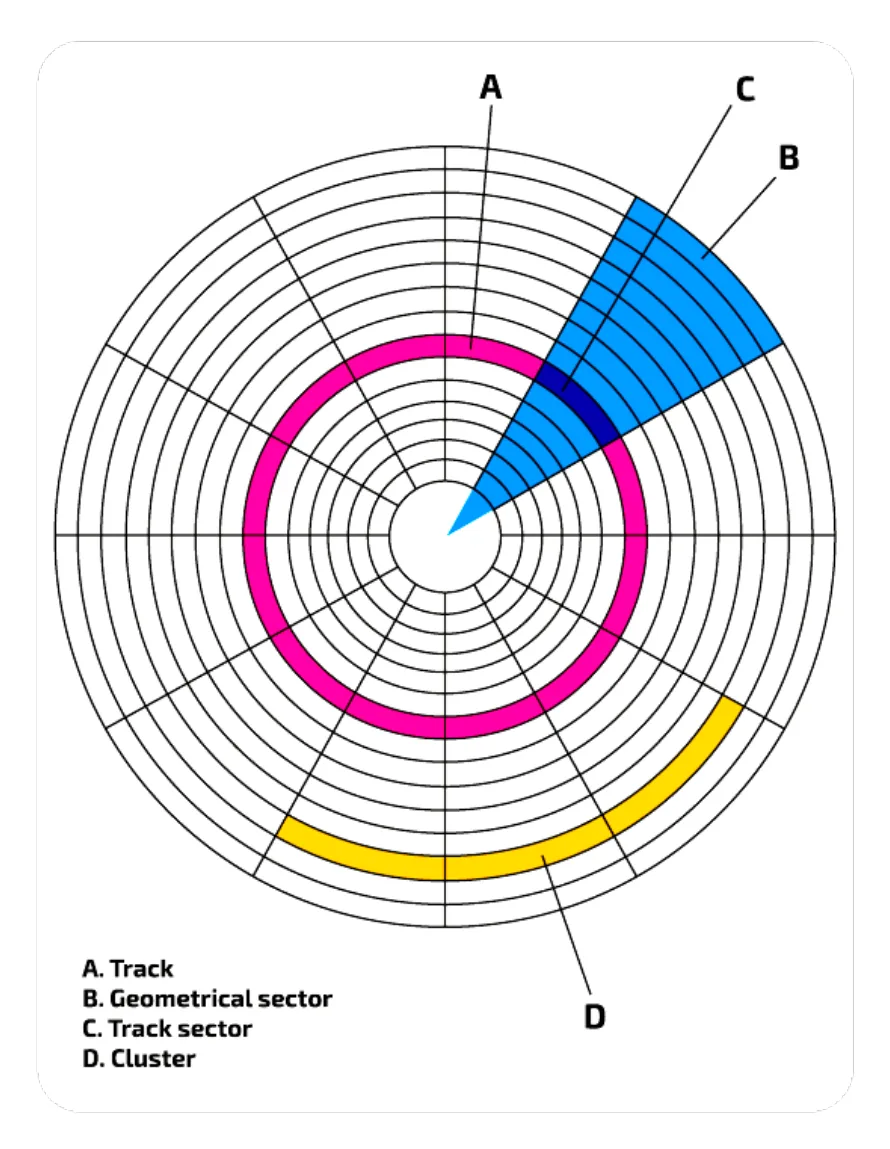
The location of every file is recorded in a file allocation record. This lets the file be found again, and lets free space be found for new files. When the disk is fairly full, files are often split across many blocks that are not next to each other, so the record must keep track of where the parts of the file are and the order they go in. If this record is lost or corrupted, the data is still on the disk, but it cannot be accessed in a meaningful way unless the record is rebuilt.
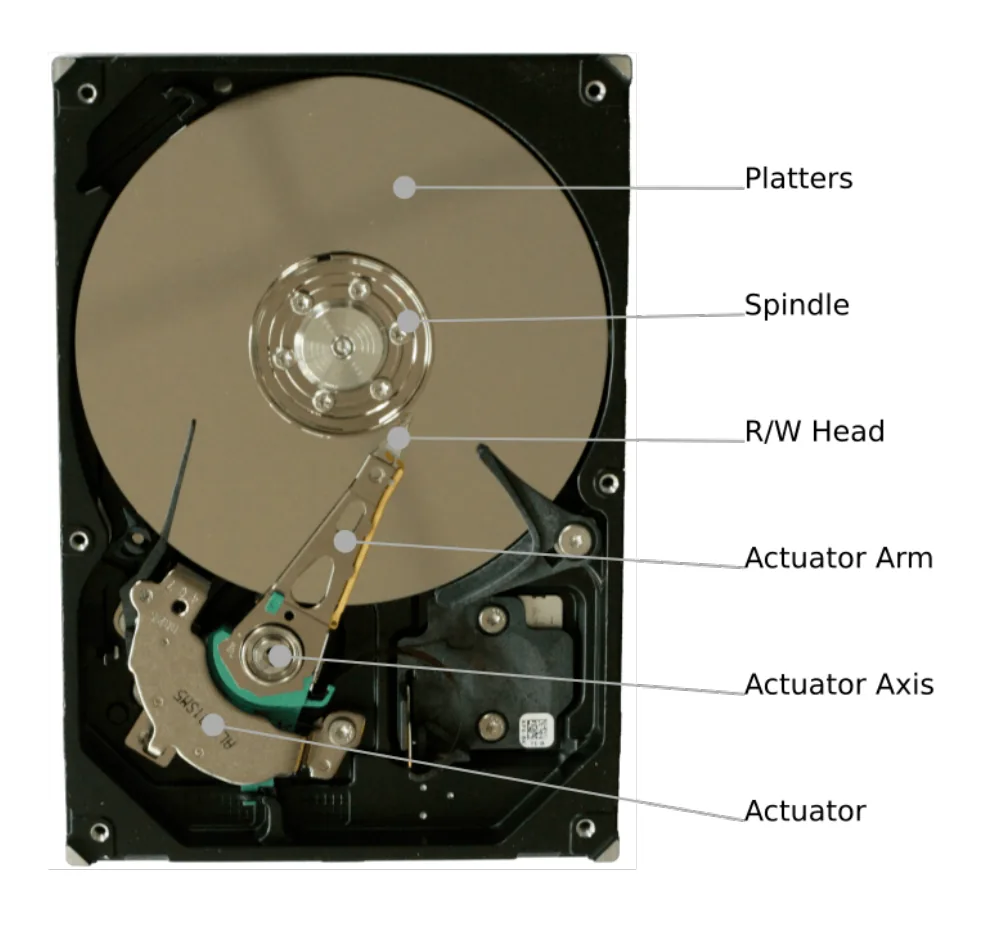
To read and write data, there is an arm with a read-write head for each side of each platter. The head is a tiny magnet. To reduce wear from friction, the head does not touch the platter: there is a very thin gap between the head and the disk surface. The platters spin, typically at 7,200 rpm. The head sweeps across the tracks, while the sectors pass underneath it as the disk turns. This means any block can be accessed directly, without reading through the whole disk. Magnetic tape, which disks replaced, only allows serial access.
Principal operations of a magnetic hard disk
- The hard disk has one or more platters (disks).
- Each surface of a platter (coated with iron oxide) can be magnetised.
- The platters are mounted on a central spindle.
- The whole mechanism is inside a sealed (aluminium) box.
- The platters spin at high speed.
- Each surface of a platter has a read-write head mounted on an arm, positioned just above the surface.
- Electronic circuits control the movement of the arm, and so the heads.
- The surface of each platter is divided into concentric tracks.
- The surface of each platter is divided into sectors.
- One track in one sector is the basic unit of storage, called a block.
- The data is stored as a magnetic pattern in each block.
- When writing, a change in the current in the head produces a change in the magnetic field on the disk.
- When reading, a change in the magnetic field on the disk produces a change in the current in the head.
Practise this: past-paper questions
- June 2022 · Paper 11 · Q2(b)A magnetic hard disk is used to store data on the computer. Describe the principal operations of a magnetic hard disk
- June 2025 · Paper 11 · Q6(a)(i)Computer 1 has a magnetic hard disk. Complete the description of the principal operation of a magnetic hard disk by writing the missing words. The…
3.1 · 20 of 28Book page Contents
The solid-state drive (SSD)
Builds on
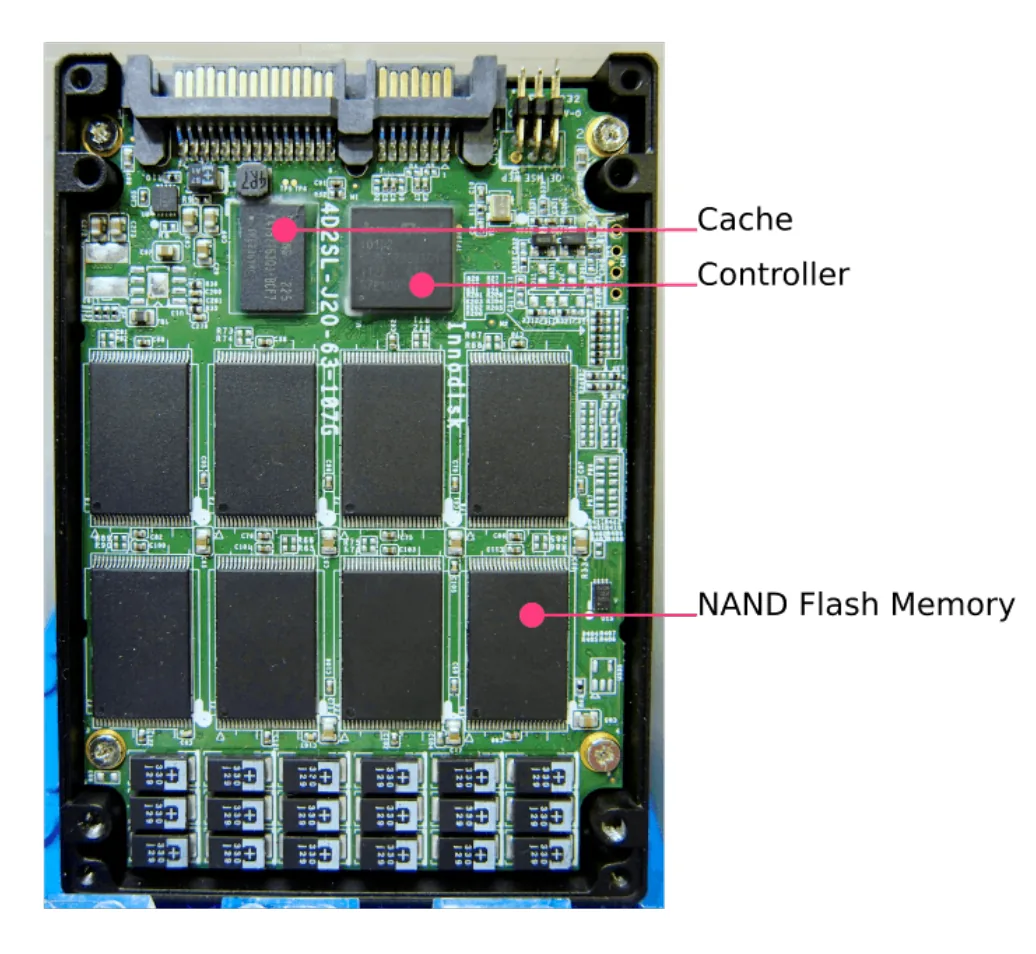
SSD stands for solid-state disk, though it is also called a solid-state drive or solid-state device. An SSD is an electronic device that uses flash memory, and it has no moving parts.
SSDs have many advantages over magnetic hard disks. The main one is speed of access: a standard SSD reads and writes at about 200 to 500 MB/s, and SSDs always outperform magnetic or optical drives.
With no moving parts, mechanical failure is far less likely, and an SSD is less likely to be damaged by everyday bumps and knocks, which makes it a better choice for portable devices. Having no moving parts also means it uses less energy, so less heat is produced.
However, an SSD has a limited lifespan: it can only be written to a limited number of times, and memory cells can leak their charge if the device is not powered up from time to time. So SSDs are not suitable for long-term archiving of data. SSD storage is also still more expensive per gigabyte than magnetic storage.
SSDs are usually built into a case the same shape as a magnetic disk drive, so a computer can be upgraded by swapping the drive or adding a second one. SSDs are best for files that are read or changed often: putting the operating system on an SSD makes the computer start up much faster, and frequently used programs and data can go on it too. Many computers now have both: a small SSD for the operating system and frequently used files, and a larger magnetic disk for files used less often.
Magnetic hard disk or SSD?
- An SSD is faster to access, more robust (no moving parts), uses less power and produces less heat, so it suits portable devices and frequently used files.
- A magnetic hard disk is cheaper per gigabyte and is available in larger capacities, so it suits storing large amounts of data, such as video files on a CCTV computer or a server.
- An SSD can only be written a limited number of times, so a magnetic disk lasts longer when data is written and overwritten constantly, as with video recording.
Practise this: past-paper questions
- June 2023 · Paper 11 · Q4(b)The central computer stores the video files on secondary storage. Describe two reasons why magnetic storage is more appropriate than solid state…
- November 2025 · Paper 13 · Q7(d)Describe two reasons why the server that stores the videos uses magnetic hard disks instead of solid state (flash) memory
3.1 · 21 of 28Book pages Contents
How solid-state (flash) memory works
Builds on
A solid-state disk is made of a controller and a bank of millions of NAND flash memory cells. Flash memory can be built using NAND or NOR technology (named after the NAND and NOR logic gates); SSDs use NAND flash.
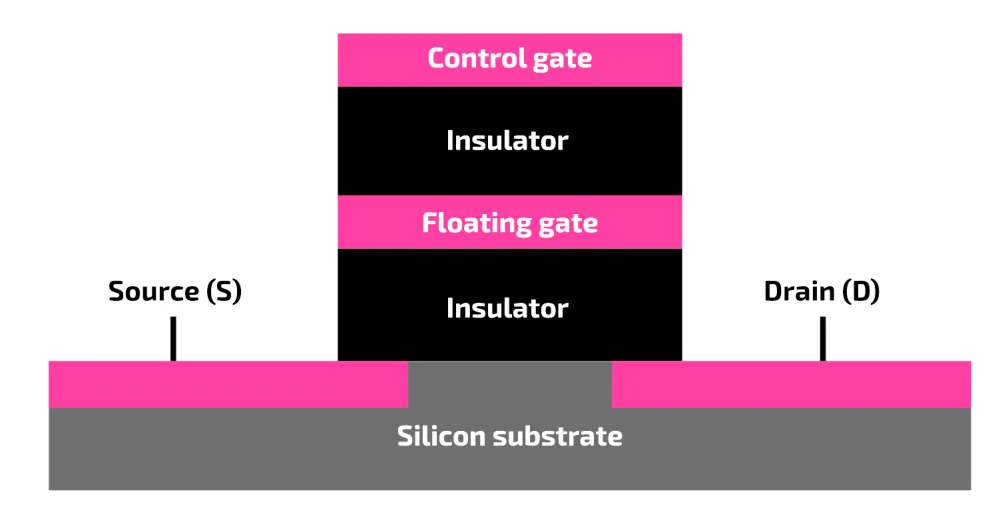
Each cell has a floating gate transistor that lets an electrical charge be trapped. A cell with trapped charge represents 0, and a cell with no trapped charge represents 1. Each cell has two gates, often described in exam questions as two transistors:
- The control gate controls whether current can pass through the cell, from the source to the drain.
- The floating gate sits between two insulating layers, so it keeps its electrons (its charge) even when there is no power. This is why flash memory is non-volatile.
NAND flash cells are organised into pages and blocks. A page is a group of cells (4 KiB in the diagram), and a block is a group of pages (256 KiB in the diagram).
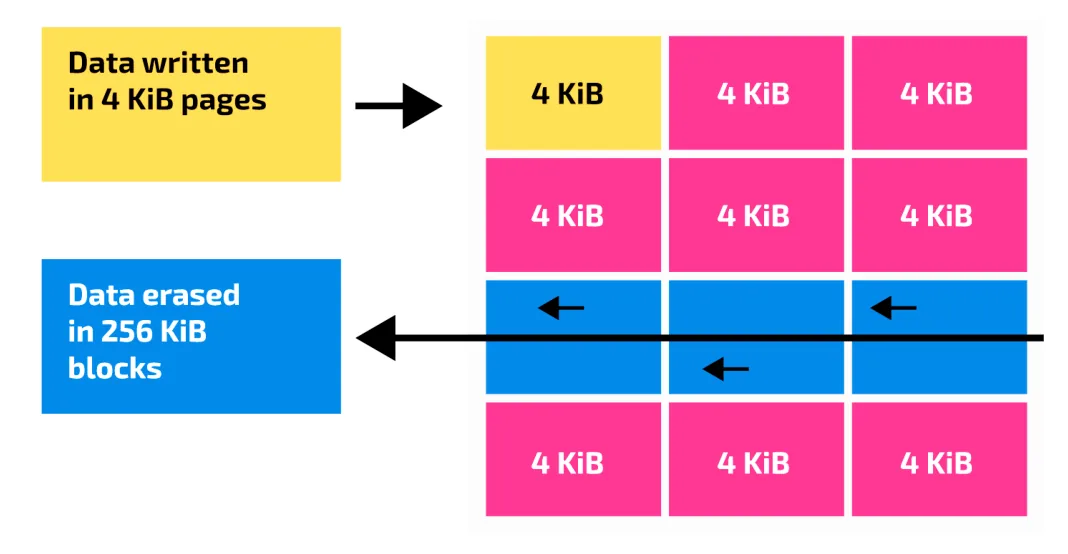
Data is read from an SSD a page at a time. It can also be written a page at a time, as long as the cells around it are empty. A file cannot be updated where it is: the block containing its pages must be copied to main memory and updated, then written to a new area of the disk, and the original block is erased.
SSDs become slower as they fill up. A new, empty drive is full of pages that can be written to straight away. When the disk is nearly full, writing and updating become slow, because existing pages in a block have to be copied out and rewritten.
Practise this: past-paper questions
Used later in
3.1 · 22 of 28Book page Contents
Optical discs
Optical discs are a large family of disc types. The most common are the CD (compact disc), the DVD (digital versatile disc) and the Blu-ray Disc. For optical storage the word is usually spelt "disc", unlike other types of disk storage.
- CD-ROM and DVD-ROM: ROM means read-only memory. These discs are usually mass-produced to distribute music and films. Each one is pressed from a mould (mastered) in one operation, so tens of thousands of copies can be made in a day. They were used to deliver application software, because they are light, easy to carry and take up little space, but now software is usually distributed over the internet.
- CD-R and DVD-R: R means recordable. These discs are also described as WORM (write once, read many). They were popular for archiving data, such as photos. Archiving means making a permanent copy, so it needs a storage medium that cannot be overwritten.
- CD-RW and DVD-RW: RW means rewritable. These discs were popular for backing up files. Backing up means making a temporary copy, so it needs a storage medium that can be overwritten later. Today, most systems are backed up to high-speed digital tape or to cloud storage.
3.1 · 23 of 28Book page Contents
Optical disc speed and lifespan
The speed rating of an optical disc is given as a multiple of a base speed, written as 1×. For CDs, the base is the speed needed to play a music (audio) CD. For DVDs, it is the speed needed to play a film.
The actual speed of reading or writing depends on two things: the speed rating of the disc and the speed rating of the drive. If a disc is rated 16× but the drive is rated 8×, the lower of the two is used. The same applies to writing.
| Format | Rating | Transfer rate |
|---|---|---|
| CD | 1× | 150 KB/s |
| DVD | 1× | 1.3 MB/s |
| Blu-ray Disc | 1× | 36 Mbit/s (4.5 MB/s) |
CD-ROMs and DVD-ROMs are fairly robust, but they can be scratched if the surface is not protected. Heat can make the polycarbonate or metal layers of any disc warp. Discs with a layer of chemical dye can be damaged by light: long exposure to sunlight damages the dye, making it more likely that data is misread, and any chemical layer breaks down over time.
The biggest problem with optical discs is finding a drive to read them. Most computers no longer come with an optical drive, and they are disappearing from music players and cars. Valuable data on a CD or DVD should be copied to cloud storage.
3.1 · 24 of 28Book page Contents
How an optical disc reader/writer works
An optical disc is made of several layers, depending on the type of disc. The base is usually polycarbonate, which gives the disc its structure, and there is always a thin reflective layer of aluminium. Recordable (R) and rewritable (RW) discs also have a layer of chemical dye on top of the reflective layer.
Each disc has one continuous track of data arranged in a spiral (not a set of concentric tracks like a hard disk). Data is stored as pits (troughs) and lands (peaks) in the surface of the disc.
Reading an optical disc
- A laser beam is used, and the data is read serially.
- The disc spins at varying speeds depending on the data being read: faster nearer the centre.
- The laser light shines on the surface of the disc and reflects off the aluminium layer.
- The reflected light hits an optoelectronic device (a light sensor) that detects changes in the light.
- The pits and lands reflect different amounts of light, and the electronics in the drive turn these changes into data bits.
Writing to an optical disc
- To write to a recordable (R) or rewritable (RW) disc, the laser is used at a higher intensity than for reading.
- The laser burns tiny dots into the chemical dye layer, changing the amount of light it reflects. This makes a readable surface that represents binary values.
- On a rewritable (RW) disc, the dye allows the burning to be reversed, so the data can be erased and the disc written again.
Practise this: past-paper questions
Used later in
3.1 · 25 of 28Book page Contents
Embedded systems
What is an embedded system
- A microprocessor or microcontroller inside a larger system, which performs one specific task.
- Example: the embedded system in a washing machine only controls the washing cycles. It is part of the washing machine, and does not do any other job.
An embedded system still needs a processor, memory and input/output. If these are all built on one chip, it is called a microcontroller. In some systems the input and output are only connected to the internal workings of the host device. In others, for example a monitoring or control system, the input comes from within the system but some output is given to the user. An embedded system can also have a full user interface, as in a mobile phone.
The major advantage of embedded systems is that they are special-purpose, perhaps doing only a single task. That task is likely to be needed in many different products, so embedded systems are mass-produced, which brings economies of scale: the more are made, the cheaper each one becomes.
In the early years, embedded systems were difficult to program because there was little memory to store the program, so programs had to be short. Also, if errors were found after the system was installed, new chips had to be made to replace the faulty ones.
These problems are less likely in modern systems, but a new problem has appeared. Embedded systems are now part of the Internet of Things: more and more of them have a network connection. This can make a product much more useful, for example by sending information and updates to the owner. But being reachable over a network is a security concern, because embedded systems are less likely to be protected against attack than general-purpose computers.
Benefits of embedded systems
- They are dedicated to one task, so they can be small, cheap and reliable.
- They are mass-produced, so each one is cheap.
- They use little power.
- They respond quickly, because they only have one job to do.
Drawbacks of embedded systems
- They are difficult to program, and errors are hard to fix or update after installation.
- The owner usually cannot change or upgrade the software, or add new tasks.
- If they are connected to a network (the Internet of Things), they can be hacked, because they are less well protected than general-purpose computers.
- If the system fails, it may be cheaper to replace the whole device than to repair it.
Practise this: past-paper questions
- June 2021 · Paper 11 · Q5(a)She has an embedded system in her washing machine. Describe what is meant by an embedded system, using the washing machine as an example
- June 2022 · Paper 12 · Q2(a)One feature is a lane detection system. This system monitors the lines on either side of the lane. If the car gets too close to one line, the…
- November 2022 · Paper 11 · Q9(a)Explain why these televisions are embedded systems
- November 2022 · Paper 13 · Q10(b)(ii)The car alarm is an example of an embedded system. Describe the characteristics of an embedded system
Show 6 more
- November 2023 · Paper 11 · Q9(b)Give one example of an embedded system and explain why it is an example of an embedded system. Example ... Explanation
- November 2023 · Paper 12 · Q1(c)(i)Identify two features of embedded systems
- November 2023 · Paper 12 · Q1(c)(ii)Identify one drawback of embedded systems
- June 2024 · Paper 11 · Q2(a)The video doorbell can be considered an example of an embedded system. Identify two characteristics of the doorbell that suggest it is an embedded…
- November 2024 · Paper 12 · Q2(a)Describe the drawbacks of embedded systems
- June 2026 · Paper 12 · Q6(a)Explain the reasons why the health monitor is an example of an embedded system
3.1 · 26 of 28Contents
Monitoring and control systems
Builds on
Many embedded systems use sensors to measure the physical world. They are either monitoring systems or control systems.
A monitoring system uses sensors to measure physical quantities, such as temperature or movement. The processor records and analyses the readings, and may display them or give a warning (for example sound an alarm or show a sign) when a reading is outside its set limits. A monitoring system does not change the conditions it is measuring. Examples: a burglar alarm, a health monitor that reads a person’s heart rate, a video doorbell that records visitors, a warning sign that tells an overweight or over-height vehicle to stop before a bridge.
A control system also uses sensors, but the processor then uses actuators to change the physical conditions, to bring them back to (or keep them at) the required values. The output of the system affects its next input, which is called feedback. Examples: a refrigerator that switches the cooling on and off to keep the temperature between 4 °C and 6 °C, automatic doors that open when a person is near, a car that brakes automatically when an object in front is too close.
- A sensor measures a physical quantity and sends an analogue signal.
- An analogue-to-digital converter (ADC) turns the reading into digital data the processor can use.
- The processor compares the reading with the stored set value or range.
- Monitoring system: the processor records or displays the data, and gives a warning if the reading is outside the range. Control system: if the reading is outside the range, the processor sends a signal to an actuator to change the conditions (for example switch a heater, a motor or a valve on or off).
- The cycle repeats continuously.
Monitoring or control?
- A monitoring system measures and records (and may warn), but its output does not change the conditions being measured.
- A control system uses actuators to change the conditions being measured, so its outputs affect its inputs (feedback).
- In an exam, justify your choice: say whether the system uses an actuator to change something physical, or only records, displays or warns.
Practise this: past-paper questions
- June 2021 · Paper 11 · Q5(c)The temperature in her refrigerator must be kept between 4 and 6 degrees Celsius. The microprocessor in the refrigerator turns on the cooling if…
- June 2024 · Paper 11 · Q2(b)State whether the video doorbell is a monitoring system or a control system. Justify your choice
- November 2024 · Paper 11 · Q5(c)Explain whether the security system is an example of a monitoring system or a control system
- November 2024 · Paper 12 · Q9(b)Explain whether the bridge warning system is an example of a monitoring system or of a control system
Show 4 more
- November 2024 · Paper 13 · Q3A car has an automatic braking system. A sensor is used to measure the distance to objects that are in front of the car. The car automatically…
- November 2025 · Paper 11 · Q9Describe the differences between a monitoring system and a control system
- November 2025 · Paper 12 · Q11An automated system opens doors when a person is detected within 2 metres. The system closes the doors when there is no longer a person within 2…
- June 2026 · Paper 12 · Q6(b)Tick (✓) one box to identify if the health monitor is an example of a monitoring system or a control system. system | tick (✓) monitoring control…
3.1 · 27 of 28Contents
Sensors and actuators
Builds on
A sensor is an input device that measures a physical quantity and sends the reading to the processor. Most sensors produce an analogue signal, which is converted to digital before the processor uses it. Common sensors include:
| Sensor | What it detects | Example uses |
|---|---|---|
| Temperature | How hot or cold something is | Refrigerator, central heating, the nozzle of a 3D printer (to keep the plastic at melting point) |
| Pressure | Force or weight pressing on it | Weighing a vehicle on a bridge, detecting an item lifted from a shelf, a person sitting in a car seat |
| Infra-red | Infra-red light (heat), or a beam of infra-red being broken | Detecting a person moving, counting items passing on a conveyor belt, a vehicle too tall for a bridge breaking a beam |
| Sound | Noise level | Detecting breaking glass in an alarm system |
| Light | Light level | Switching on a floodlight when daylight falls below a set level, counting items that break a light beam |
| Ultrasonic or proximity | Distance to an object | Automatic braking, a robot avoiding obstacles, automatic doors |
| Motion (accelerometer, gyroscope) | Movement and direction | A VR headset tracking head movement |
An actuator is an output device that turns a signal from the processor into physical movement or action, such as a motor, a valve, a pump, a heater or a switch. For example, in a factory, when a sensor shows that a chocolate bar has the wrong weight, the processor sends a signal to an actuator, which moves an arm to push the bar off the conveyor belt.
Answering a sensor question
- Name a sensor that really measures the quantity in the scenario (for example pressure for weight, infra-red for a person moving).
- Say how it is used: what it measures, and what the processor does with the reading.
Practise this: past-paper questions
- November 2022 · Paper 13 · Q10(b)(i)Identify one sensor that could be used in a car alarm system. Justify your choice
- November 2023 · Paper 11 · Q7(b)Describe the purpose of a temperature sensor within the 3D printer
- November 2023 · Paper 12 · Q1(a)An automated system counts the number of chocolate bars made at the end of production. The system includes a sensor positioned above the conveyor…
- November 2023 · Paper 12 · Q1(b)A second automated system removes chocolate bars with an incorrect weight from the production line. Describe the role of an actuator in this…
Show 4 more
- June 2024 · Paper 13 · Q7(a)A robot navigates through the restaurant to the table it is serving. Complete the table by identifying two sensors that can be included in the…
- November 2024 · Paper 11 · Q5(a)Complete the table to identify the most appropriate type of sensor for each scenario. | Scenario | Type of sensor | | A door is open. | | | The…
- November 2024 · Paper 12 · Q9(a)The bridge warning system uses sensors to detect if a vehicle exceeds the limits. Complete the table by identifying two different sensors that…
- June 2025 · Paper 11 · Q4(b)The new system uses sensors to identify the items taken from a shelf. Identify one type of sensor that can be used in this new system. State how…
Used later in
3.1 · 28 of 28Contents
Feedback in control systems
Feedback is when the output of a control system affects its next input. After the processor tells an actuator to act, the sensors keep measuring, so the processor can see the effect of what it did and adjust its next output.
For example, a refrigerator’s temperature sensor reads 7 °C, which is too high, so the processor switches the cooling on. The sensor keeps reading the temperature as it falls. When it reaches 4 °C, the processor switches the cooling off. Without feedback, the processor would not know when to stop.
Importance of feedback in a control system
- The output of the system affects the next input, so the processor can check whether its action has worked.
- It lets the system adjust its output automatically, to keep conditions within the set range.
- It lets the system respond to changes in conditions straight away, making it stable and accurate.
Practise this: past-paper questions
- November 2022 · Paper 13 · Q10(a)Explain the importance of feedback in a control system
- November 2023 · Paper 11 · Q9(a)Explain the importance of feedback in a control system
- June 2024 · Paper 13 · Q7(c)The navigation system can be considered an example of a control system. Describe how feedback is used in a control system
3.1
Concepts in 3.1
Every idea explained in 3.1, and where else in the notes it is used.
Zain Merchant's notes, page by page, as printed in his book. The Notes tab has the same notes as text, with links.
Past-paper questions and mark schemes © Cambridge University Press & Assessment. Compiled for revision by Zain Merchant.
- June 2021 · Paper 11 · Q5Notes:Comparing RAM and ROMEmbedded systemsMonitoring and control systems
- November 2021 · Paper 12 · Q3Notes:How a microphone works
- June 2022 · Paper 11 · Q2Notes:Comparing RAM and ROMSRAM and DRAMPROM, EPROM and EEPROMPrincipal operations of a magnetic hard disk
- June 2022 · Paper 12 · Q2Notes:Why a computer needs input, output and storageResistive touchscreensEmbedded systems
- November 2022 · Paper 11 · Q7Notes:Why a computer needs input, output and storage
- November 2022 · Paper 11 · Q9Notes:PROM, EPROM and EEPROMEmbedded systems
- November 2022 · Paper 12 · Q3Notes:Comparing RAM and ROM
- November 2022 · Paper 13 · Q1Notes:Buffers
- November 2022 · Paper 13 · Q10Notes:Embedded systemsSensors and actuatorsFeedback in control systems
- June 2023 · Paper 11 · Q4Notes:Read-only memory (ROM)SRAM and DRAMThe solid-state drive (SSD)
- June 2023 · Paper 13 · Q3Notes:How touchscreens workResistive touchscreensCapacitive touchscreens
- November 2023 · Paper 11 · Q7Notes:How a 3D printer worksSRAM and DRAMSensors and actuators
- November 2023 · Paper 11 · Q9Notes:Embedded systemsFeedback in control systems
- November 2023 · Paper 12 · Q1Notes:Embedded systemsSensors and actuators
- November 2023 · Paper 12 · Q8Notes:Why a computer needs input, output and storage
- November 2023 · Paper 13 · Q7Notes:Why a computer needs input, output and storageHow a laser printer worksSRAM and DRAMPROM, EPROM and EEPROMBuffers
- June 2024 · Paper 11 · Q2Notes:Why a computer needs input, output and storageBuffersHow solid-state (flash) memory worksEmbedded systemsMonitoring and control systems
- June 2024 · Paper 12 · Q2Notes:How a virtual reality headset worksPROM, EPROM and EEPROMBuffers
- June 2024 · Paper 13 · Q7Notes:How touchscreens workSensors and actuatorsFeedback in control systems
- November 2024 · Paper 11 · Q3Notes:SRAM and DRAMBuffersHow an optical disc reader/writer works
- November 2024 · Paper 11 · Q5Notes:Monitoring and control systemsSensors and actuators
- November 2024 · Paper 12 · Q2Notes:SRAM and DRAMPROM, EPROM and EEPROMEmbedded systems
- November 2024 · Paper 12 · Q9Notes:Monitoring and control systemsSensors and actuators
- November 2024 · Paper 13 · Q2Notes:SRAM and DRAMBuffers
- November 2024 · Paper 13 · Q3Notes:Monitoring and control systems
- June 2025 · Paper 11 · Q4Notes:Sensors and actuators
- June 2025 · Paper 11 · Q6Notes:Principal operations of a magnetic hard disk
- November 2025 · Paper 11 · Q6Notes:SRAM and DRAM
- November 2025 · Paper 11 · Q9Notes:Monitoring and control systems
- November 2025 · Paper 11 · Q10Notes:How a 3D printer worksBuffers
- November 2025 · Paper 12 · Q8Notes:How touchscreens work
- November 2025 · Paper 12 · Q11Notes:Monitoring and control systems
- November 2025 · Paper 13 · Q4Notes:PROM, EPROM and EEPROM
- November 2025 · Paper 13 · Q7Notes:The solid-state drive (SSD)
- June 2026 · Paper 12 · Q6Notes:Comparing RAM and ROMEmbedded systemsMonitoring and control systems
- June 2026 · Paper 13 · Q8Notes:How a microphone worksPROM, EPROM and EEPROMBuffers
Past-paper questions and mark schemes © Cambridge University Press & Assessment. Compiled for revision by Zain Merchant.
Try the questions first.
Write your answers, then check them against the mark scheme. Your choice is remembered on this device.