AS Level 9618 · Paper 1 · 5.1
Operating Systems
Why a computer needs an operating system, and what utility software and libraries do. Read the notes, try the past-paper questions, then check the mark scheme.
Past papers from June 2021 to June 202625 questions · 135 marks
In this subtopic
- Why an operating system is needed
- The management tasks the operating system carries out
- Typical utility software
- Program libraries, including DLL files
5.1 · 1 of 17Book pages Contents
Why a computer needs an operating system
Builds on
An operating system (OS) is software that controls the computer’s hardware and software resources. It allows applications to interact with the hardware on a computer. Some software can interact with hardware directly, but most software is not written to interact with each particular piece of hardware, so the operating system takes care of interacting with the hardware.
The earliest computers did not have an OS. Every program had to include all of the code to run the computer, which made each program complex and difficult to create. Operating systems were developed, and part of their job is to hold the code needed to run the computer. This means applications can be written more easily, to work on a common operating system rather than for individual computers.
The operating system is the most fundamental piece of system software. All other software needs an operating system in place, which will:
- act as a platform on which the other software can run
- handle the operations that are common to different pieces of software running on the same system, for example allowing software to read from and write to secondary storage devices such as a hard disk.
Without an OS, these functions would have to be included in every piece of software running on the same system. This would be inefficient, and computers would be less flexible at running a variety of applications, because each piece of software would need to be designed for the specific hardware it was to run on.
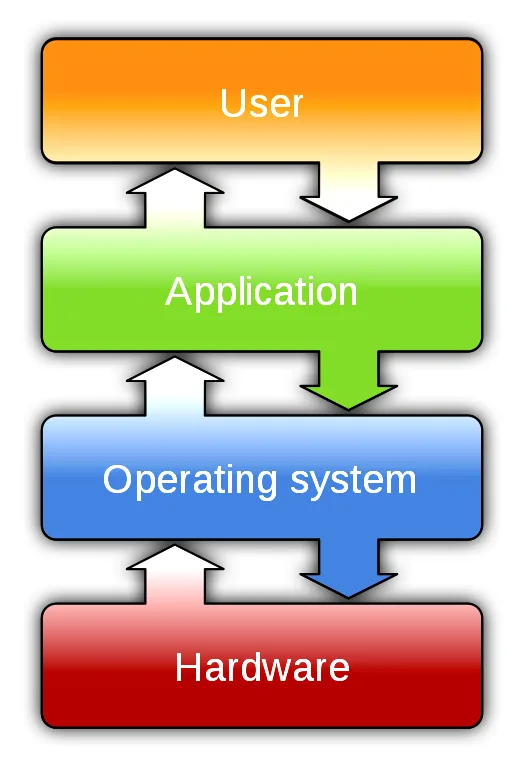
Software instructs the hardware to carry out tasks, and layers of software combine to let the computer carry out these tasks. Typically, the operating system interacts with the hardware, provides a user interface, and supports security.
Whether the OS is custom written for one particular device or is a well-known OS installed on a wide range of hardware, every operating system performs the same basic functions that keep the computer running smoothly. These are its key management tasks:
| Key management task | What the OS does |
|---|---|
| Process management (also called processor management) | Shares out processor time between processes using a scheduler, so that multi-tasking is possible. |
| Memory management | Decides how much main memory each process gets, allocates it and frees it again. |
| File management | Keeps track of where files are stored and lets the user create, rename, move and delete files and folders. |
| Hardware management (input, output and peripherals) | Communicates with input and output devices through device drivers, and handles interrupts. |
| Security management | Protects system resources from unauthorised access with user accounts and permissions. |
Purpose of an operating system
- To provide a platform on which application software can run.
- To hide the complexity of the hardware from the user and from applications.
- To provide a user interface.
- To carry out the key management tasks: process, memory, file, hardware and security management.
Practise this: past-paper questions
- June 2021 · Paper 11 · Q2(b)Identify four key management tasks that the Operating System will perform
- June 2022 · Paper 13 · Q4(a)Describe the key management tasks of an operating system
- November 2022 · Paper 13 · Q3Draw one line from each Operating System (OS) management task to its most appropriate description. OS Management task: • hardware management •…
- June 2023 · Paper 11 · Q3(b)Hardware management is one key management task carried out by the Operating System. Identify two other key management tasks carried out by the…
Show 4 more
- November 2023 · Paper 12 · Q8(a)State one purpose of the Operating System
- June 2025 · Paper 11 · Q6(b)Both computers have an Operating System (OS). Describe the purpose of an OS in a computer
- November 2025 · Paper 13 · Q8(d)Memory management is one key management task performed by an OS. Give three other key management tasks that are performed by an OS
- June 2026 · Paper 13 · Q5(a)(ii)Identify two other key management tasks that the OS performs. 1 2
Used later in
5.1 · 2 of 17Book pages Contents
Process management
Builds on
When you open a program, the operating system works behind the scenes to make sure all the hardware is processing the right instructions at the right time. It starts by finding the program’s instructions and data in secondary storage and loading them into main memory. The processor is then instructed to execute the processes needed to open the program.
A computer with a single processor core can only carry out one process at a time. However, the OS uses a scheduler to swap tasks in and out of the processor, so that it appears to the user that the computer is carrying out more than one task at the same time. For example, you can listen to a music track from an online streaming service while using a word processor to do your homework. This is known as multi-tasking. Modern computers often have several cores, which makes them better at multi-tasking, but each core can still only carry out one process at a time.
When several processes are running, the operating system must share out processing time between them. The scheduler swaps between processes as required, following a scheduling algorithm, which decides:
- how the processing time will be divided: for example, the processes may not all get the same amount of processing time
- in what order the processes will get processing time: for example, based on how important each running process is thought to be, and how interrupts are handled.
When the operating system swaps between processes:
- the process that is running is paused, its state is saved, and it is moved back into a queue
- the scheduler decides which process needs to run next.
In a multiprocessor system, the scheduler also shares the processes out between the cores, as well as sharing out processing time between them.
Process management tasks
- Schedules processes: decides which process runs next and for how long.
- Pauses a running process, saves its state and moves it back into the queue.
- Allows multi-tasking by switching between processes so they share the processor.
- Gives priority to more important processes and handles interrupts.
Practise this: past-paper questions
- June 2023 · Paper 12 · Q5(d)(i)Describe how the Operating System (OS) manages processes in the computer
- June 2024 · Paper 12 · Q6A computer has an Operating System (OS). Memory management and process management are two OS tasks. Explain how memory management and process…
- November 2024 · Paper 12 · Q3(c)The computer has an Operating System (OS). One of the key management tasks of the OS is process management. Describe the process management tasks…
- June 2026 · Paper 12 · Q7(a)(i)Identify two tasks the OS performs as part of process management. 1 2
5.1 · 3 of 17Book pages Contents
Memory management
Builds on
The instructions and data needed for a process have to be in main memory. To make sure of this, the OS runs a memory manager program, which:
- keeps track of which parts of memory have been allocated
- maps memory to each process
- decides how much memory to allocate to each process
- decides when a part of memory should be made available to a process.
The operating system needs to keep track of where data is stored in main memory (RAM). Instructions and data are usually stored at first on non-volatile media such as a hard disk. The operating system loads them into main memory so that the data can be processed and the instructions can be executed.
Memory management includes three operations:
- Tracking the status of memory allocation. Memory is divided into physical address spaces. The OS first marks each space as free. When needed, the OS loads data into these spaces and marks them as allocated. When the data or instructions are no longer needed, the OS marks the spaces as free again, so the data stored there can be overwritten.
- Determining storage requirements. The data needed for a process rarely fits in a single memory location, so the OS decides how much memory to allocate to each running process, based on what its program needs. The OS then reserves blocks of addresses for each process to use.
- Controlling memory storage. Memory is a limited resource: as more processes use memory, less free space is left. Parts of memory may need to be freed to give other processes memory to use. The OS manages swapping between processes and their memory space, so each process gets memory when it needs it.
Memory management tasks
- Divides RAM into blocks and allocates them to processes as they need them.
- Keeps track of which blocks are free and which are allocated.
- Frees memory when a process no longer needs it, so it can be reused.
- Makes sure each process uses only its own memory, so processes do not overwrite each other’s data.
Practise this: past-paper questions
- November 2022 · Paper 11 · Q7(b)Memory management is one of the tasks performed by an Operating System (OS). Describe the ways in which memory management organises and allocates…
- June 2024 · Paper 12 · Q6A computer has an Operating System (OS). Memory management and process management are two OS tasks. Explain how memory management and process…
- June 2026 · Paper 12 · Q7(a)(ii)Identify two tasks the OS performs as part of memory management. 1 2
5.1 · 4 of 17Book pages Contents
File management
Builds on
If you have used an operating system such as Microsoft Windows or macOS, you can carry out tasks on files and folders such as:
- creating
- renaming
- moving
- deleting.
These are user interface tools that the operating system provides to help the user organise their files. Behind the scenes, the operating system controls how data is stored and retrieved. It keeps track of where the files are stored on the secondary storage device so that they can be found quickly when they are requested.
Backing storage means any non-volatile storage device. The operating system keeps a directory of where files and programs are stored, so that they can be found quickly when they are requested and transferred into main memory. Keeping a directory also speeds up saving and saves computing resources, because the OS does not have to search for free space every time a user saves a file.
When files and folders are on a secondary storage device that is connected, the operating system:
- gives access to the data and programs that need to be loaded from secondary storage into main memory
- keeps track of where programs and files are stored
- carries out backup operations
- provides a user-friendly file management system, which lets the user create, edit and delete the files and folders on secondary storage devices.
File management tasks
- Keeps a directory (folder) structure and records where each file is stored.
- Allocates storage space to files and keeps track of the free space.
- Sets file naming rules and lets users create, open, copy, move, rename and delete files.
- Controls access to files with access rights and passwords, so files can be shared safely.
Practise this: past-paper questions
5.1 · 5 of 17Book pages Contents
Hardware management: inputs, outputs and interrupts
Builds on
A key role of the operating system is controlling and using input and output (I/O) devices. The OS manages I/O devices in several ways:
- it records which device needs processor time, so that the processor can communicate with each device without conflicts
- it gives priority to processes based on the control signals that the I/O device sends and receives.
If an I/O device makes a more urgent request than the task being executed, the OS can interrupt that task and swap to the more important one.
Think of a user pressing a key to type a word into a word processor. The character should appear on the screen almost immediately. If this had to wait until all the other processes had finished, the user would notice the delay and typing would become uncomfortable.
Instead, devices use interrupts to get processor time for urgent processes. An interrupt is a signal sent to the processor to request immediate attention. When the processor receives it, it suspends what it is doing and runs the process linked to the interrupt.
The processor can be interrupted for a number of reasons, including:
- a hardware device has signalled that it has data to process
- a hardware device has completed a task it was asked to do
- a software process needs a service to be provided or an OS function to be performed
- an allotted amount of time has run out and an action needs to be performed
- a hardware failure has occurred and needs to be dealt with.
Most of us have clicked furiously on a mouse while waiting impatiently for software to load. This makes things worse: each click distracts the processor from the task you want it to finish.
Practise this: past-paper questions
- June 2023 · Paper 11 · Q3(a)Describe how the Operating System manages the peripheral hardware devices of the computer
- November 2025 · Paper 11 · Q5(a)(i)State two tasks that are performed by hardware management
- June 2026 · Paper 13 · Q5(a)(i)Identify two tasks the OS performs as part of hardware management. 1 2
Used later in
5.1 · 6 of 17Book pages Contents
Device drivers
Builds on
A device driver is a program that controls the operation of a specific type of device that is part of a computer system, such as a printer, keyboard or mouse. Manufacturers build hardware devices in different ways. A device driver provides an interface that lets the operating system interact with the device, which in turn lets the device interact with the software on your computer. Device drivers are installed into the operating system when they are needed, extending what the operating system can do.
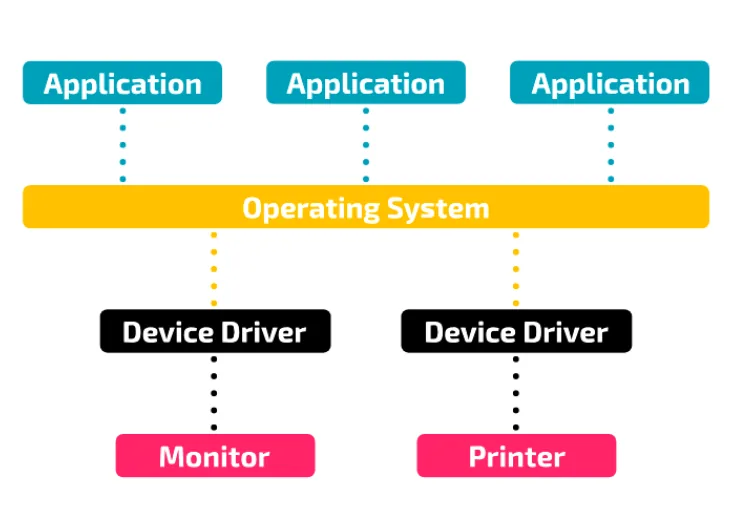
Installing device drivers. Drivers are usually installed by software that is built into the operating system or, where necessary, downloaded from the internet. For example, when a specialist keyboard is connected, the operating system detects the model of the keyboard and downloads the right driver from the manufacturer’s website. Older systems, or systems with specialist hardware, may need to install device drivers from physical storage media, such as a CD provided by the manufacturer.
If a specific device driver cannot be found or is not installed, the operating system may load a generic device driver. A generic driver may not suit the device as well as a specific one:
- the generic device driver may be missing features that the specific device driver would provide
- the generic device driver may work inefficiently, so the computer system’s performance slows down.
For example, a gaming mouse has extra buttons that perform specific functions. Without its specific device driver, the mouse will probably still do the basics, such as moving the cursor around the screen and the normal left and right clicks, but the extra buttons are unlikely to work or do what they are meant to do.
Hardware management tasks
- Installs and loads device drivers so the OS can communicate with each peripheral.
- Sends data to output devices and receives data from input devices.
- Manages interrupts and control signals from devices, giving priority to urgent requests.
Practise this: past-paper questions
- June 2023 · Paper 11 · Q3(a)Describe how the Operating System manages the peripheral hardware devices of the computer
- November 2025 · Paper 11 · Q5(a)(i)State two tasks that are performed by hardware management
- June 2026 · Paper 13 · Q5(a)(i)Identify two tasks the OS performs as part of hardware management. 1 2
5.1 · 7 of 17Book page Contents
Security management
The operating system supports the security of a device by protecting the system’s resources from unauthorised access.
An operating system usually lets users create user accounts, so that only authorised users can access the system. Users with admin rights can give other users specific permissions, such as which files they are allowed to access and change. They can also give permissions such as the right to add new users or to install and uninstall software.
Operating systems often include utility software made for security, such as:
- firewalls
- anti-malware
- checks for software updates.
Security management tasks
- Prevents unauthorised access by making users log in to user accounts.
- Sets access rights and permissions for each user, such as which files they can access and change.
- Provides security utilities such as a firewall and anti-malware, and checks for updates.
Practise this: past-paper questions
5.1 · 8 of 17Book pages Contents
User interfaces: CLI and GUI
Builds on
To let the user interact with the computer, an operating system provides a user interface (UI). A UI can take various forms.
A command line interface (CLI) lets the user interact with the system by typing in specific commands. There are no graphics or icons like those on a smartphone or tablet; instead the user types text at a command prompt, and the system executes the commands typed there.
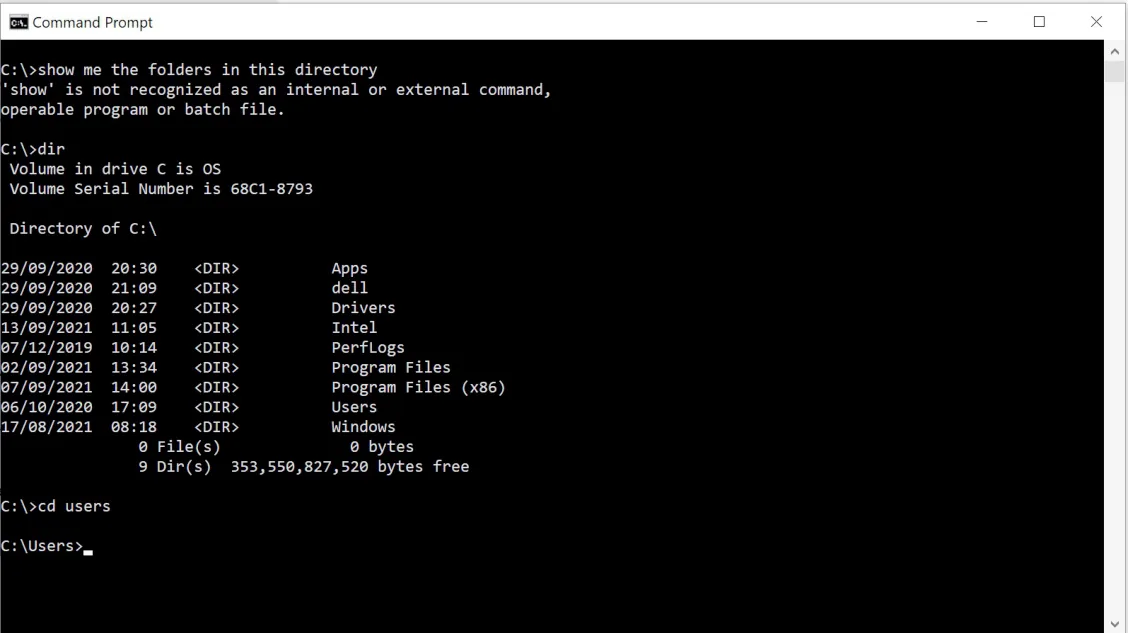
The main benefit of a CLI is that it needs little secondary storage and RAM, because there are no graphics. Experienced users and system administrators often prefer a CLI because it gives them more control over the computer system than a graphical user interface, which often has restrictions.
A graphical user interface (GUI, sometimes said as “gooey”) is the most common form of user interface, found on computer systems from desktop computers to smartphones and even satellite navigation systems. A GUI is usually made up of:
- windows
- icons
- menus
- pointers (mouse clicks or screen presses).
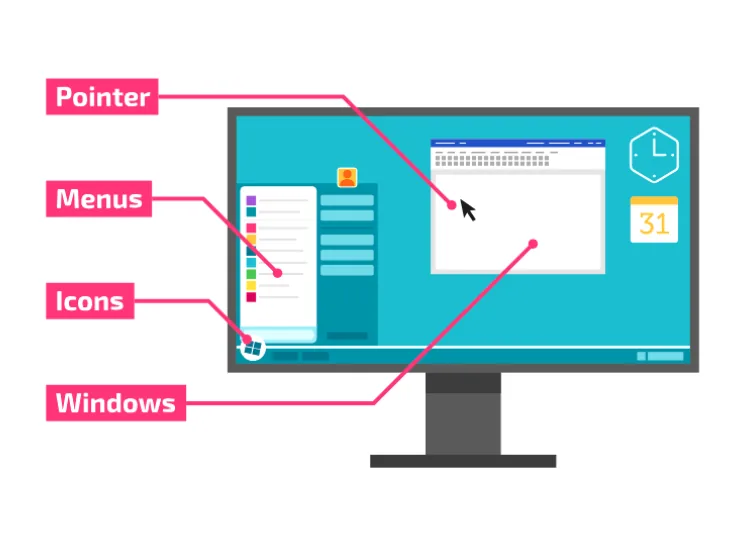
A GUI is thought of as user-friendly because it is visual and easy to use without training. The user interacts with icons and menus, using input devices such as a keyboard, mouse or touchscreen, without having to learn the specific commands a command line interface needs. Because a GUI includes graphics, it needs more secondary storage and RAM than other types of user interface.
Used later in
5.1 · 9 of 17Book page Contents
Utility software
A utility program can be provided with the operating system or installed separately. It is not executed as part of the normal running of the operating system. Instead, the user or the operating system decides to run it when it is needed. For example, some utility programs manage hard disks.
Utility software is needed to help set up, maintain and improve the performance and security of a computer: it carries out the housekeeping jobs that keep the system working well. The utilities you need to know are:
| Utility | What it does |
|---|---|
| Disk formatter | Prepares a disk for first use: removes old data, sets up the file system and partitions the disk. |
| Disk contents analysis and disk repair | Checks a disk for errors, marks bad sectors so they are not used, and recovers what data it can. |
| Defragmentation software | Moves the parts of each file together into one block, so files can be read faster. |
| Backup software | Makes copies of files on a schedule, so data can be restored if it is lost or corrupted. |
| File compression | Makes files smaller, to save storage space and to send them faster. |
| Virus checker | Scans files for viruses and other malware, and removes them. |
Note Utilities that improve performance: defragmentation (faster file access), disk repair (bad sectors are no longer used) and file compression (more free space). Utilities for security: virus checker, firewall and backup software.
Practise this: past-paper questions
- June 2021 · Paper 11 · Q2(a)Draw one line from each utility software to its correct description. Utility software: Disk formatter Defragmentation Back-up Disk repair…
- November 2021 · Paper 12 · Q7(c)Identify two utility programs that can be used to improve the performance of a computer and state how they improve the performance
- June 2022 · Paper 13 · Q4(b)(ii)Give one other example of utility software
- November 2022 · Paper 12 · Q1(a)Draw one line from each utility software to its most appropriate purpose. Utility software virus checker disk formatter backup disk repair…
Show 4 more
- June 2023 · Paper 12 · Q5(d)(ii)Describe the purpose of utility software in a computer
- November 2023 · Paper 12 · Q8(b)The Operating System has utility software. The purpose of some utility software is to improve security. Identify one example of utility software…
- November 2025 · Paper 12 · Q8(b)(ii)The image files that are displayed on the touchscreen have been corrupted. Identify two examples of utility software that could be used to recover…
- June 2026 · Paper 13 · Q5(b)(i)State the purpose of utility software in a computer
Used later in
5.1 · 10 of 17Book page Contents
Disk formatter
A disk formatter usually carries out these tasks:
- removing existing data from a disk that has been used before
- setting up the file system on the disk, based on a table of contents that links each file the operating system recognises to a specific physical part of the disk
- partitioning the disk into logical drives, if this is needed.
A new hard disk must be formatted before it can be used, because it has no file system yet.
Practise this: past-paper questions
Used later in
5.1 · 11 of 17Book page Contents
Disk contents analysis and disk repair
Another utility program, which can be part of a disk formatter, carries out disk contents analysis and, if possible, disk repair when needed. The program first checks the disk for errors.
Some errors come from a physical defect, which causes what is called a bad sector. Bad sectors have a number of possible causes, but they usually arise either during manufacture or from mishandling of the system. An example is moving the computer without making sure the disk heads are secured away from the disk surface.
Other errors come from an event such as a loss of power or an error that suddenly shuts the system down. As a result, some of the files on the disk may no longer be usable.
A disk repair utility can mark bad sectors so that the file system no longer tries to use them. When files have been damaged, the utility may be able to recover some of the data; otherwise it has to delete the files.
Practise this: past-paper questions
- November 2021 · Paper 12 · Q7(c)Identify two utility programs that can be used to improve the performance of a computer and state how they improve the performance
- November 2025 · Paper 12 · Q8(b)(ii)The image files that are displayed on the touchscreen have been corrupted. Identify two examples of utility software that could be used to recover…
Used later in
5.1 · 12 of 17Book page Contents
Disk defragmenter
Builds on
A disk defragmenter can also be part of a disk repair utility, but it is not mainly concerned with errors. A perfectly working disk gradually becomes less efficient while it is in use, because constantly creating, editing and deleting files leaves them fragmented: split into parts stored in different places on the disk. This happens because of the way data is arranged in sectors, which does not always allow a file to be stored as a single block of data.
The table shows a simple example. At the start, File A fills three sectors and part of a fourth. File B is small, so it fills only part of a sector. File C fills two sectors and part of a third.
| Sectors 0 to 3 | Sector 4 | Sectors 5 to 7 | Sectors 8 and 9 | |
|---|---|---|---|---|
| At the start | File A (part of sector 3 empty) | File B (part empty) | File C (part of sector 7 empty) | empty |
| File B is deleted | File A (part of sector 3 empty) | empty | File C (part of sector 7 empty) | empty |
| File A is extended | File A (all four sectors full) | empty | File C (part of sector 7 empty) | rest of File A (all of sector 8, part of sector 9) |
When File B is deleted, its sector stays empty, because rearranging the files every time there is a change would take too much CPU time. When File A is extended, it first fills the rest of the first four sectors, and the rest of the file is stored in all of Sector 8 and part of Sector 9. File A is now in two separate parts. Sector 4 will only be used again if a small file is created, or if the disk fills up, when it might store the first part of a longer file.
A defragmenter reorganises the file storage so that every file is stored in one block across a sequence of sectors (contiguous sectors). For a large disk this takes some time. It is impossible if the disk is too full, because there is no working space for the rearranging.
How defragmentation improves performance
- Over time, files are split into fragments stored in different places on the disk.
- Defragmentation moves the fragments of each file together so each file is contiguous, and gathers the free space together.
- The disk head moves less to read a whole file, so files are read and written faster.
Practise this: past-paper questions
- November 2021 · Paper 12 · Q7(c)Identify two utility programs that can be used to improve the performance of a computer and state how they improve the performance
- June 2022 · Paper 13 · Q4(b)(i)Describe the purpose of back-up software and defragmentation software. Back-up software Defragmentation software
- June 2023 · Paper 11 · Q3(c)The Operating System has utility software including defragmentation software. Explain how defragmentation can improve the performance of the computer
- November 2023 · Paper 12 · Q8(b)The Operating System has utility software. The purpose of some utility software is to improve security. Identify one example of utility software…
5.1 · 13 of 17Book page Contents
Backup software
You may make a manual backup of your own files now and then, using a flash memory stick. An easier way is to use a backup utility program. Such a program will:
- set up a schedule for backups, so backups happen automatically and the user does not have to remember
- only create a new backup file when there has been a change.
If the original data is lost or corrupted, it can be restored from the backup copy.
Practise this: past-paper questions
- June 2022 · Paper 13 · Q4(b)(i)Describe the purpose of back-up software and defragmentation software. Back-up software Defragmentation software
- November 2024 · Paper 11 · Q4(a)(ii)Explain the need for back-up software
- November 2025 · Paper 12 · Q8(b)(ii)The image files that are displayed on the touchscreen have been corrupted. Identify two examples of utility software that could be used to recover…
Used later in
5.1 · 14 of 17Book page Contents
File compression
Builds on
A file compression utility program can be used regularly by an operating system to reduce how much hard disk storage is needed. Whether or not the operating system does this, a user can still install a suitable program. Compression matters most when sending data: it makes sense to compress (or “zip”) a file before attaching it to an email.
5.1 · 15 of 17Book page Contents
Virus checker
A virus checker should be installed as a permanent part of a computer system to protect it. In an ideal world, it would only need to scan a file when the file first entered the system. This can never happen in practice: when a new virus appears, there is a delay before it is recognised and a further delay before virus checkers are updated to deal with it. So a virus checker must be updated regularly and must scan all the files on a computer system as a matter of routine.
Practise this: past-paper questions
- November 2021 · Paper 12 · Q7(c)Identify two utility programs that can be used to improve the performance of a computer and state how they improve the performance
- November 2022 · Paper 12 · Q1(a)Draw one line from each utility software to its most appropriate purpose. Utility software virus checker disk formatter backup disk repair…
Used later in
5.1 · 16 of 17Book page Contents
Program libraries
High-level languages come with program libraries of pre-written (and, where relevant, precompiled) code. For example, most programming languages have libraries that carry out mathematical functions by calling pre-written code, such as the Math library of Java.
Software under development is often built using existing code from program libraries. The programmer imports the library into the program and then calls its routines, instead of writing them. Libraries give access to many specialist functions, for example the method for comparing two floating-point numbers in Java’s Math library.
Using library code is generally encouraged, because it saves you a lot of time writing new code. Library code from a reliable source has usually been thoroughly tested, so it is efficient and reliable.
Benefits of using program libraries
- Saves programming time: the code is already written, so it does not have to be written from scratch.
- Saves testing time: the routines have already been tested, so they are more likely to work.
- The programmer can use complex routines that they might not be able to write themselves.
- If the library routine is improved, programs that use it can benefit from the update.
- A library created by a team lets every team member reuse the same routines.
Drawbacks of using library routines
- A routine may not be compatible with the program, or may not do exactly what is needed, so it has to be edited and tested.
- A routine from an unreliable source may not have been tested thoroughly, so it may contain bugs or malware.
- If someone else changes the library routine later, the program may give unexpected results.
Practise this: past-paper questions
- June 2021 · Paper 12 · Q7(a)Jennifer uses a program library to help her write her computer program. Describe how a program library can be used while writing a computer program
- June 2022 · Paper 11 · Q5(c)Explain the benefits to the programmer of using program libraries
- June 2023 · Paper 12 · Q7(a)(i)Define the term program library
- June 2024 · Paper 12 · Q8(c)The programmer uses program libraries when developing the program. Describe two benefits to the programmer of using program libraries
Show 8 more
- June 2024 · Paper 13 · Q7(e)(i)State what is meant by a program library
- June 2024 · Paper 13 · Q7(e)(ii)Some program libraries include Dynamic Link Library (DLL) files. Describe the benefits of a programmer using a library with DLL files instead of…
- November 2024 · Paper 11 · Q4(c)The student used a program library when writing their program. Explain the benefits to the student of using library files when writing a program
- November 2024 · Paper 12 · Q4(b)The programmers created a new program library whilst developing the program. Describe the benefits to the programmers of creating a program library
- November 2025 · Paper 11 · Q5(b)(i)Describe one benefit of using library routines when developing software
- November 2025 · Paper 11 · Q5(b)(ii)Describe one drawback of using library routines when developing software
- November 2025 · Paper 13 · Q8(b)Explain how a programmer benefits from using program libraries during program development
- June 2026 · Paper 13 · Q5(c)(i)Define the term program library
5.1 · 17 of 17Book pages Contents
Dynamic link libraries (DLLs)
Builds on
A dynamic link library (DLL) is a library of pre-written code that can be shared by several programs. When a program that uses a DLL is loaded or run, the DLL it needs is linked in, so its code can be used within the program. This linking is usually done by the operating system, so the programmer does not have to worry about how it works. The name “dynamic link library” belongs to Microsoft’s version of this idea in Windows, but other operating systems have similar versions.
One benefit of this dynamic linking is that the code from the DLL only needs to be loaded into memory once, and then several different programs can use it. DLLs reduce duplication in main memory, leave more memory free, and reduce the amount of swapping in and out needed, all of which make programs run faster.
Because the routines in a DLL are pre-written, they have been carefully debugged and optimised. A developer can use this efficient code to carry out a function, rather than every programmer having to write the code again from scratch.
DLLs make it possible for a program to support several different types of hardware. For example, when a program makes a call to print a document, a DLL might be used to load the drivers for the printer you own, so that the print instruction can be translated into commands your printer understands.
Pros of using DLL files
- The executable code of the main program is much smaller, because DLL files are only loaded into memory at run time.
- Changes can be made to DLL files independently of the main program, so if a DLL file is changed, the main program does not need to be recompiled.
- DLL files can be made available to several applications at the same time.
- All of the above save memory and also save execution time.
Cons of using DLL files
- The executable code is not self-contained, so all the DLL files must be available at run time; otherwise error messages (such as a missing .dll error) appear and the software may even crash.
- Any DLL linking software in the main program must be available at run time, so that the links with the DLL files can be made.
- If any DLL file has been changed (on purpose or by corruption), the main program may give unexpected results or even crash.
- Malicious changes to DLL files, caused by malware, put the main program at risk once it links to them.
Practise this: past-paper questions
- November 2022 · Paper 11 · Q7(a)State two benefits to a programmer of using Dynamic Link Library (DLL) files. 1 2
- June 2023 · Paper 12 · Q7(a)(ii)Explain two benefits to the developer of choosing to create a Dynamic Link Library (DLL)
- June 2024 · Paper 13 · Q7(e)(ii)Some program libraries include Dynamic Link Library (DLL) files. Describe the benefits of a programmer using a library with DLL files instead of…
- June 2026 · Paper 13 · Q5(c)(ii)Describe one benefit of the student using a Dynamic Link Library (DLL) instead of a non-Dynamic Link Library
5.1
Concepts in 5.1
Every idea explained in 5.1, and where else in the notes it is used.
| Concept | In one line | Also used in |
|---|---|---|
| backing storage | Any non-volatile storage device, such as a hard disk, where files are kept. | only here |
| backup software | A utility that copies files on a schedule so they can be restored if lost. | 5.1 Utility software |
| bad sector | A part of a disk with a physical defect, so it can no longer store data reliably. | 5.1 Utility software |
| command line interface (CLI) | A user interface where the user types commands as text at a prompt. | only here |
| defragmentation | Moving the parts of each file together so files are contiguous and read faster. | 5.1 Utility software |
| device driver | A program that lets the OS communicate with one specific type of device. | 4.1 USB ports, 4.1 Interrupt service routines (ISR), 5.1 Why a computer needs an operating system |
| disk formatter | A utility that prepares a disk for use: removes data, sets up the file system, partitions. | 5.1 Utility software, 5.1 Disk contents analysis and disk repair |
| disk repair | A utility that checks a disk for errors, marks bad sectors and recovers data. | 5.1 Utility software, 5.1 Disk defragmenter |
| dynamic link library (DLL) | A shared library linked to a program only when it runs, and loaded into memory once. | only here |
| file compression | A utility that makes files smaller to save storage space and transmission time. | 5.1 Utility software |
| file management | Keeping track of where files are stored and letting users create, rename, move and delete them. | 5.1 Why a computer needs an operating system |
| fragmented file | A file split into parts stored in different places on the disk. | only here |
| generic device driver | A general driver used when the specific one is missing; it may lack features. | only here |
| graphical user interface (GUI) | A user interface of windows, icons, menus and pointers. | only here |
| hardware management | Controlling input and output devices through drivers and handling their interrupts. | 5.1 Why a computer needs an operating system, 5.1 Device drivers |
| key management tasks | Process, memory, file, hardware and security management, carried out by the OS. | only here |
| memory management | Allocating main memory to processes, tracking which blocks are free and freeing them again. | 5.1 Why a computer needs an operating system |
| multi-tasking | Swapping processes so quickly that several tasks seem to run at the same time. | 4.1 Address bus width and the amount of RAM, 5.1 Why a computer needs an operating system |
| operating system (OS) | Software that controls the hardware and software resources and gives a platform for other software. | 3.1 Why a computer needs input, output and storage, 3.1 Read-only memory (ROM), 3.1 Comparing RAM and ROM, 3.1 The solid-state drive (SSD), 4.1 Allocating processor time, 4.1 Interrupts and their causes, 4.1 Hardware and software interrupts, 4.1 Interrupt service routines (ISR), 4.2 The instruction set and instruction groups, 5.1 Process management, 5.1 Memory management, 5.1 File management, 5.1 Hardware management: inputs, outputs and interrupts, 5.1 Device drivers, 5.1 Security management, 5.1 User interfaces: CLI and GUI, 5.1 Utility software, 5.1 Disk formatter, 5.1 File compression, 5.1 Dynamic link libraries (DLLs) |
| process management | Sharing processor time between processes, using a scheduler, so several can run. | 5.1 Why a computer needs an operating system |
| program library | A set of pre-written, pre-tested routines that can be imported and called in a program. | only here |
| scheduler | The part of the OS that swaps processes in and out of the processor. | 5.1 Why a computer needs an operating system |
| scheduling algorithm | The rules that decide how processor time is divided and in what order processes get it. | only here |
| security management | Protecting system resources from unauthorised access with accounts and permissions. | 5.1 Why a computer needs an operating system |
| user accounts and admin rights | Logins for each user; users with admin rights set what others may access or change. | only here |
| user interface | The way a user interacts with the computer, such as a CLI or a GUI. | 3.1 Embedded systems, 5.1 Why a computer needs an operating system, 5.1 File management, 8.2 The developer interface |
| utility software | Programs that help set up, maintain and improve the computer, run when needed. | 5.1 Security management, 5.1 Disk contents analysis and disk repair, 5.1 File compression |
| virus checker | A utility that scans files for viruses and removes them; it must be kept up to date. | 5.1 Utility software |
Zain Merchant's notes, page by page, as printed in his book. The Notes tab has the same notes as text, with links.
Past-paper questions and mark schemes © Cambridge University Press & Assessment. Compiled for revision by Zain Merchant.
- June 2021 · Paper 11 · Q2Notes:Why a computer needs an operating systemUtility software
- June 2021 · Paper 12 · Q7Notes:Program libraries
- November 2021 · Paper 12 · Q7Notes:File managementUtility softwareDisk contents analysis and disk repairDisk defragmenterVirus checker
- June 2022 · Paper 11 · Q5Notes:Program libraries
- June 2022 · Paper 13 · Q4Notes:Why a computer needs an operating systemUtility softwareDisk defragmenterBackup software
- November 2022 · Paper 11 · Q7Notes:Memory managementDynamic link libraries (DLLs)
- November 2022 · Paper 12 · Q1Notes:Utility softwareVirus checker
- November 2022 · Paper 13 · Q3Notes:Why a computer needs an operating system
- June 2023 · Paper 11 · Q3Notes:Why a computer needs an operating systemHardware management: inputs, outputs and interruptsDevice driversDisk defragmenter
- June 2023 · Paper 12 · Q5Notes:Process managementUtility software
- June 2023 · Paper 12 · Q7Notes:Program librariesDynamic link libraries (DLLs)
- November 2023 · Paper 12 · Q8Notes:Why a computer needs an operating systemUtility softwareDisk defragmenterFile compression
- November 2023 · Paper 13 · Q5Notes:Disk formatter
- June 2024 · Paper 12 · Q6Notes:Process managementMemory management
- June 2024 · Paper 12 · Q8Notes:Program libraries
- June 2024 · Paper 13 · Q7Notes:Program librariesDynamic link libraries (DLLs)
- November 2024 · Paper 11 · Q4Notes:File managementBackup softwareProgram libraries
- November 2024 · Paper 12 · Q3Notes:Process management
- November 2024 · Paper 12 · Q4Notes:Program libraries
- June 2025 · Paper 11 · Q6Notes:Why a computer needs an operating system
- November 2025 · Paper 11 · Q5Notes:Hardware management: inputs, outputs and interruptsDevice driversSecurity managementProgram libraries
- November 2025 · Paper 12 · Q8Notes:Utility softwareDisk contents analysis and disk repairBackup software
- November 2025 · Paper 13 · Q8Notes:Why a computer needs an operating systemProgram libraries
- June 2026 · Paper 12 · Q7Notes:Process managementMemory managementDisk defragmenter
- June 2026 · Paper 13 · Q5Notes:Why a computer needs an operating systemHardware management: inputs, outputs and interruptsDevice driversUtility softwareDisk formatterProgram librariesDynamic link libraries (DLLs)
Past-paper questions and mark schemes © Cambridge University Press & Assessment. Compiled for revision by Zain Merchant.
Try the questions first.
Write your answers, then check them against the mark scheme. Your choice is remembered on this device.